
Our eagle-eyed Rock Star @Carina spotted this great post and nominated it for recognition as a Post of the Week.

@user-removed created a detailed post featuring screenshots explaining how to change the shuffle settings on your iOS device:
"The problem is once you press the shuffle button, the app will play all subsequent playlists in shuffle mode until you disable it. However, disabling this function isn't as intuitive as it should be. Otherwise, the aforementioned thread wouldn't be so large and growing.

Here's how to disable it. While you're in a playlist, at the bottom of the screen the name of the artist and song appears. To the right of it, the play or pause icon appears.
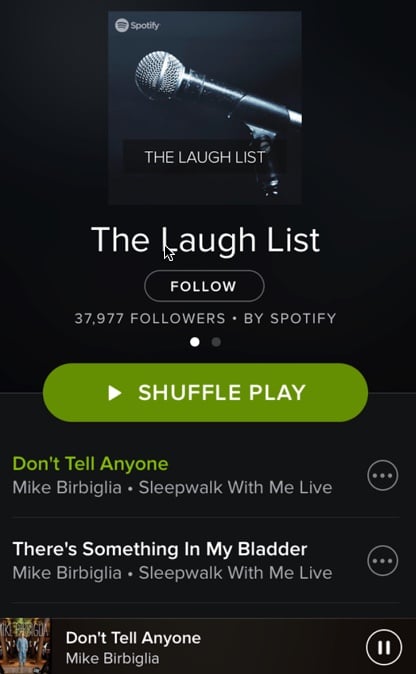
1. Press anywhere in the red circle below (in other words, don't press the play/pause icon).

2. This will bring up the album cover with even more options towards the bottom of your screen. See image below.
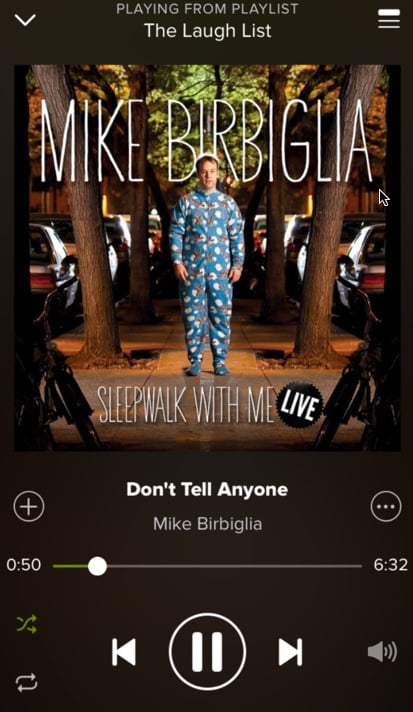
3. At the very bottom will be your song options (play/pause, rewind, advance forward, etc).
4. Look to the very left of the play and you will see two more icons right below the timeline. These are the repeat and shuffle icons.
5. The shuffle icon is above the repeat icon. If it's green, it means shuffle is enabled. If it's white/gray, it is disabled. Press to toggle.
Example below with shuffle enabled:
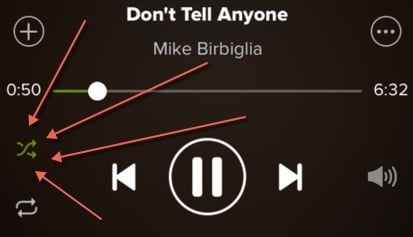
And when toggled, now shuffle is disabled:

Great post floridonet--you've got a month of Premium coming your way. Keep an eye on your Community inbox.
