[Android] Allow window resizing of Android app on ChromeOS (Chromebooks)

Now that we can use Android apps on ChromeOS devices (like Chromebooks), I’ve been using that instead of the web player and it works pretty well. Unfortunately it can only run in two window modes: full screen, or windowed in a narrow “cell phone” mode (see attached). Some Android apps allow you to use the mouse to resize the window on ChromeOS, just like you would with a application in Windows/Mac. It would be great to have this ability on ChromeOS with the Android app! The cell phone dimensions feel very cramped on a laptop/desktop screen, and full screen is just too big. The app also has to restart when you switch between windowed and full screen, it would also be nice if that didn't happen since it interrupts playback.
Comments
 jtt1_x21-0bt
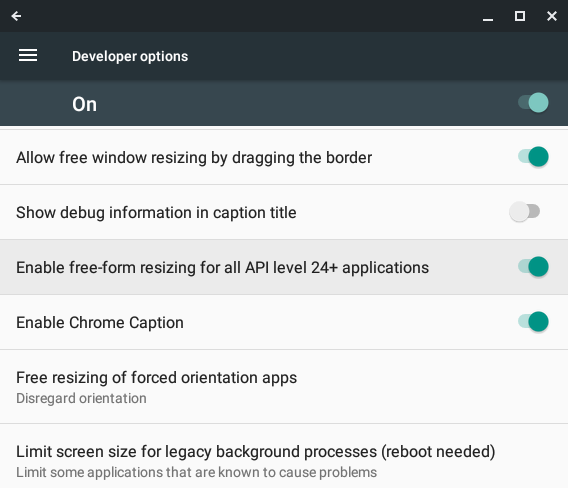 Developer OptionsAs far as I can tell, this is because the Spotify Android app targets API level 23, included in Android 6.0. In order for an app to be resizeable, it has to target at least API level 24, which is included in Android 7.0 (See image). This issue should be resolved by the first update after November 1., because Google requires that all Android app updates target API level 26 (Android 8.0) after that date. Targetting API level 26 will not make older versions incompatible, but will allow the app to use the newer features in the higher API level. Sources: developer.android.com, www.apkmirror.com.

Updated on 2018-10-19
Marked as new idea.

Yes please for this one! The great thing about the Android Spotify app on ChromeOS (over the web app), is that it integrates with the menu bar, allowing media controls through the notification/task bar menu item - the lack of dynamic sizing is the only thing making Spotify on ChromeOS less then perfect.

A lot of people have missed a native Spotify client for Chromebooks. Until recently there was only two options: use the web-interface (low-quality) or the Android app (limited functionality, small screen).
Now, finally, we have a solution:
The newest update to the Chromebook system includes an option to install Linux. When done, it will run in a virtual box and open a linux terminal - also known as a 'command-line'. From there you can install real linux-applications, like spotify for linux.
Here is how:
In the linux terminal:
# 1. Add the Spotify repository signing keys to be able to verify downloaded packages
sudo apt-key adv --keyserver hkp://keyserver.ubuntu.com:80 --recv-keys 931FF8E79F0876134EDDBDCCA87FF9DF48BF1C90

# 2. Add the Spotify repository
echo deb http://repository.spotify.com stable non-free | sudo tee /etc/apt/sources.list.d/spotify.list

# 3. Update list of available packages
sudo apt-get update

# 4. Install Spotify
sudo apt-get install spotify-client
When done, just issue the command: spotify. Now you're up and running!


That´s a great idea! I have not tried chromeos but i hope it gets implemented.
Well, the complete instructions for installing Spotify on Chromebook's linux can be found here:
https://www.spotify.com/dk/download/other/
And navigate to the Linux section. Be aware though, that the 'snap' method may not work, because snap requires the Ubuntu environment, whereas the Linux version on Chromebook is Debian. So use the Debian way!
And just to clarify for those spotifyers who are not familiar with a linux terminal:
When in the terminal ('command-prompt'), cust copy the lines without the beginning # and paste them - one by one, followed by <Enter> until the process is finished (the 'prompt' reappears). Finally, type "spotify" (without the "" of course) and press <Enter>. Now enjoy the full-fledged Spotify experience on your Chromebook!
Updated on 2019-09-02
Hello!
Your idea has been submitted a while ago but unfortunately hasn't gathered enough kudos (100 per year). In order to keep an overview of the active & recent ideas in this forum, we will close this idea for now. However this does not mean that your idea has been declined by Spotify.
If you still feel strongly about your request, we encourage you to post your idea in a little different form again! Maybe now is the right time to receive the support of our community for your suggestion! 😉
P.S: More information about how the ideas exchange works can be found here.