Sleep Timer Disappeared - Android

Plan
Premium
Country
New Zealand
Device
Huawei Mate 20 Pro
Operating System
Android Version 9 / EMUI 9
My Question or Issue
The sleep timer has disappeared? It was definitely available (I always use it), now after re-installing Spotify it is gone. It's like the app is glitching (see below screenshot) - when clicking on the 3 dots it's not bringing up the full menu, you can see the bottom inch or so is like frozen on the previous screen, and you can't scroll down the menu (black background part of scree) to get to where the the sleep timer was etc. OS and Spotify App are all latest versions & have tried re-installing.
Accepted answers
All comments

Hi,
I am facing this issue as well.
I am on Android 10 and using the latest version 8.5.36.747.
After switching to a new phone I don't have a sleep timer option anymore.
I tried you suggestions @hezorg, but that didn't help.
Best regards,
Alex

Hey, @hanicht
Initially, please, do the following:
- Play a song
- Go to the Now Playing View
- Click on the three dots in the top-right corner
If you don't see the sleep timer option, send me a screenshot which shows this, as @Sploblet has done above.
And thanks for the information provided about your OS and app.
Keep me posted, please!
Kind Regards,
hezorg


I have the same issue. Latest Spotify version installed on Android 10.
@iPearl, could you tell me what is the app version you're running? You can check it on settings or Play Store...
Keep me posted!
Kind Regards,
hezorg
Hello, @hezorg ! The "Sleep Timer" option appeared out of nowhere today. I have previously tried removimg and reinstalling the app many times. I do not know what was wrong nor how the option appeared again. Everything seems to be working now. Thank you for your help.
Hey, @iPearl
That sounds great! Thanks for keeping us in the loop and glad to hear this did the trick.
Don't hesitate to give us a shout if there's anything else we can help with. We'll be happy to lend a hand.
Have a great day 🙂
Hello again. After the latest update, the sleep timer disappeared again. This is so frustrating.!
Hey again, @iPearl
Sorry for the delay... Are you running a Beta/Alpha version of the Spotify app on your device?
Keep me posted! 🙂

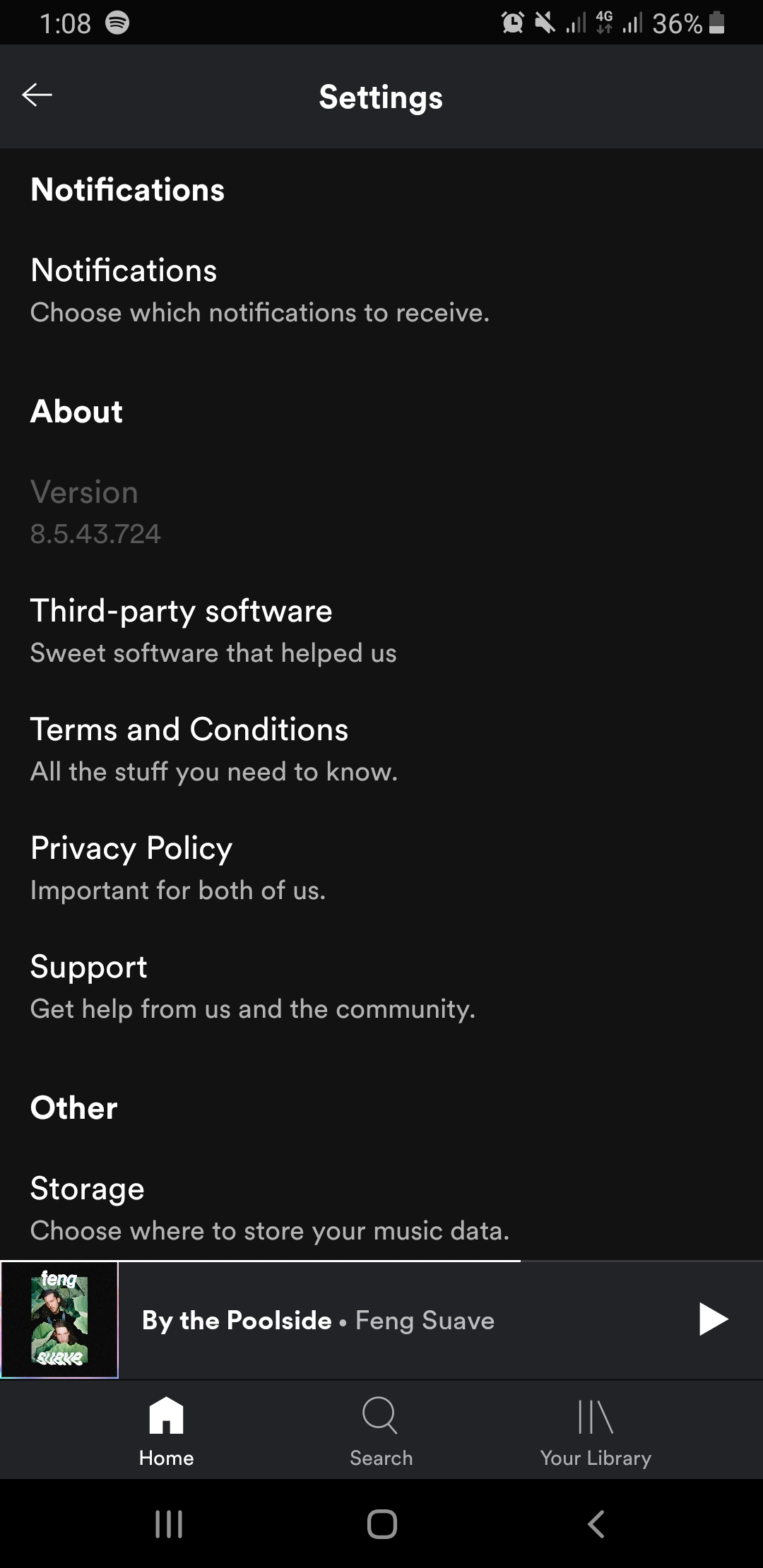
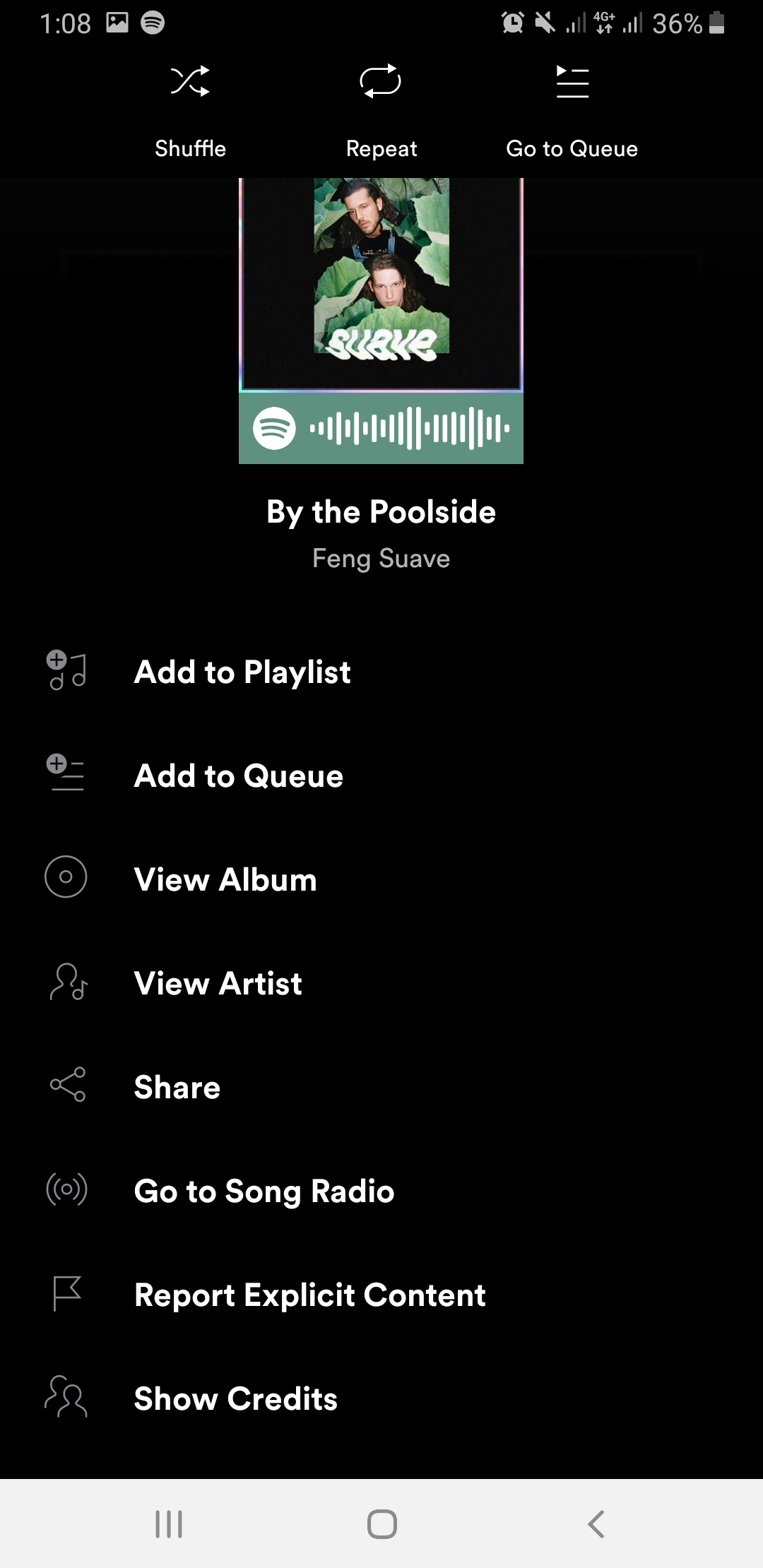
Hi. I also face the similar problem. My phone is Samsung A6+ Android 9 (Info about Spotify version is attached). My Spotify plan is Spotify Family. The app used to have sleeping timer but it is gone after the latest update.

Hello,
I'm experiencing this issue on a:
Samsung S21
Android version 11
Spotify version 8.6.48.796
Is there any other known troubleshooting? Thanks

Hi there folks,
Thank you for your replies in this thread. We just came across it.
In this case we suggest that you perform a clean reinstall of the app. This will make sure there's no old cache files causing this.
If that doesn't do the trick and you have an SD card we suggest that you uninstall the app > turn off your phone > take out your SD card > turn on the phone again (without the SD card) > reinstall the app since the card can be corrupted.
Let us know how everything goes 🙂
Take care!

My sleep timer is missing as well. Not sure if it was ever there cuz I'm trying to use it for the first time. I have cleared cache, uninstalled and reinstalled, and rebooted two times now. No SD cards are involved.
I just upgraded to Android 12 last night
Spotify version 8.6.74.1176

Hey @Happyahab,
Thanks for the post.
Can you share a screenshot of how the following menu looks:
Play a track > open the Now playing view, so that you can see the album cover art > cleck the 3-dot menu and scroll down.
Cheers.
Thank you for reaching out Alex. Actually this looks like it's working, mostly. Now that I dig into it the sleep timer option is available for songs, however it is NOT available for podcasts. I had assumed it wouldn't matter. Is there any reason it does (song vs podcast)?

Hi @Happyahab,
Thank you for your reply!
To set a sleep timer for podcast episodes, please tap on the crescent icon in the Now Playing view:
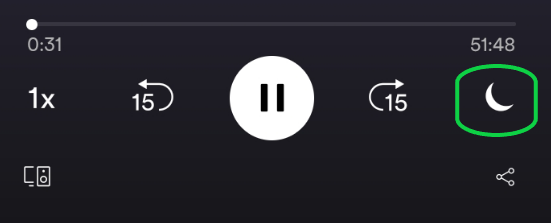
There you'll be able to set the time the app will stop the playback.
Hope this helps. In case you're having trouble with this, it'd be great if you can send over some screenshots so we can see how things look on your end.

Hey mine is doing this but only while casting to my Google nest.
Spotify version: 8.8.0.347



Hey @LottieOllie,
Thanks for reaching out about this.
We can confirm that at the moment, due to the way the app is set up, the Sleep Timer isn't able to pause playback when connecting to another device.
However, we recommend having a look at this Idea suggesting the possibility to use the Timer along with the Connect feature. Despite its current status, you can still add your vote to it and if anything changes in the future, we'll make sure to keep everyone updated over there.
The Idea Exchange is a great way for us to see what our users are interested in and how many people like a certain idea.
Check out this Spotify Answer to learn more about it.
If you need a hand with anything else, the Community is here for you.
Hey, @Sploblet
Welcome to Spotify Community and thanks for reaching out here!
Could you try to clean the caches and data from Spotify on your device? You can do it on:
After doing it, reboot your device and check if the issue persists...
If you have any other further questions or need more help, let me know! I'd love to help!
Best Regards,
hezorg