Change language on account

When I created my Spotify account I was connected to a VPN in the Netherlands. Now every time I log into my account everything is in Dutch and the emails I receive from Spotify are in Dutch. I don't speak Dutch so I have to change it every time I log in which is a pain. Is there any way I can permanently have my account changed to English? I only see the option for Dutch when I try to change it in my account.
Accepted answers
All comments

Desktop launcher > Settings > Language
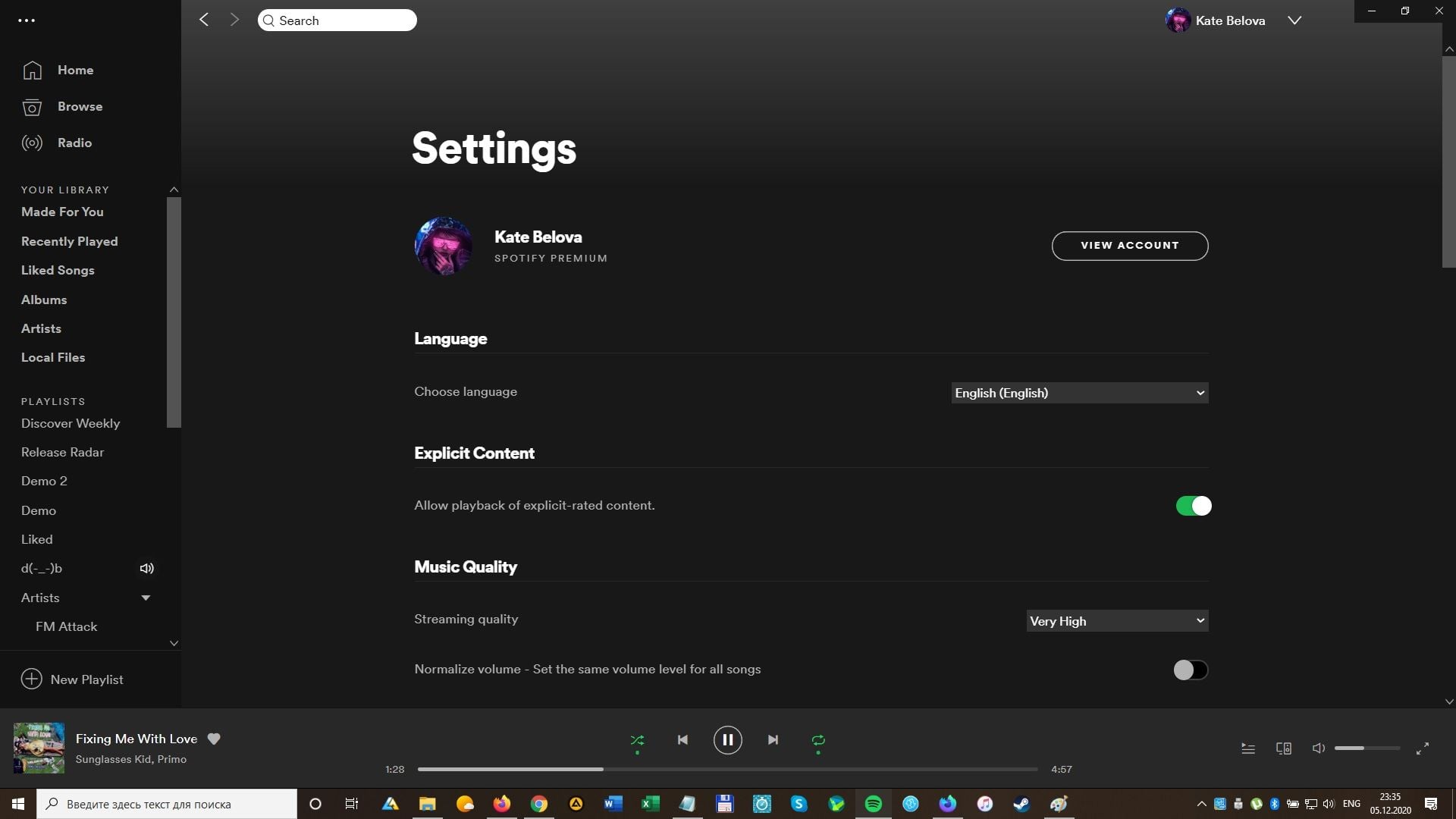
I've already changed it in the desktop app but I'm still receiving emails in Dutch and everything on the website is in Dutch. If I try to change the language for my account on the website I only have an option for Dutch on the drop-down.

Hi there @Kobrakai,
Thanks for reaching out about this.
You can log in your Account page and change your country from there. After that you should receive all messages from Spotify in the language of the country you've selected. Note: You must be physically in the country in order to be able to select it.
Just follow the instructions here.
Hope this helps 🙂
Thanks that appears to have worked. I was still connected to a Dutch VPN which is why it wasn't giving me the option to change languages to English. Unfortunately my country has questionable data privacy laws so I am always connected to the VPN while browsing, hopefully this won't cause any more issues with Spotify.
Hi there @Kobrakai,
Thanks for getting back to us.
Glad to hear that the country change worked.
Note that you should log in without the VPN at least one every 14 days if you're running a free account. Otherwise your country settings might revert and your account may get temporarily locked until you log back in from the country which you've set on your account page.
Cheers!
Hi there @Kobrakai,
Thanks for reaching out about this.
You can log in your Account page and change your country from there. After that you should receive all messages from Spotify in the language of the country you've selected. Note: You must be physically in the country in order to be able to select it.
Just follow the instructions here.
Hope this helps 🙂