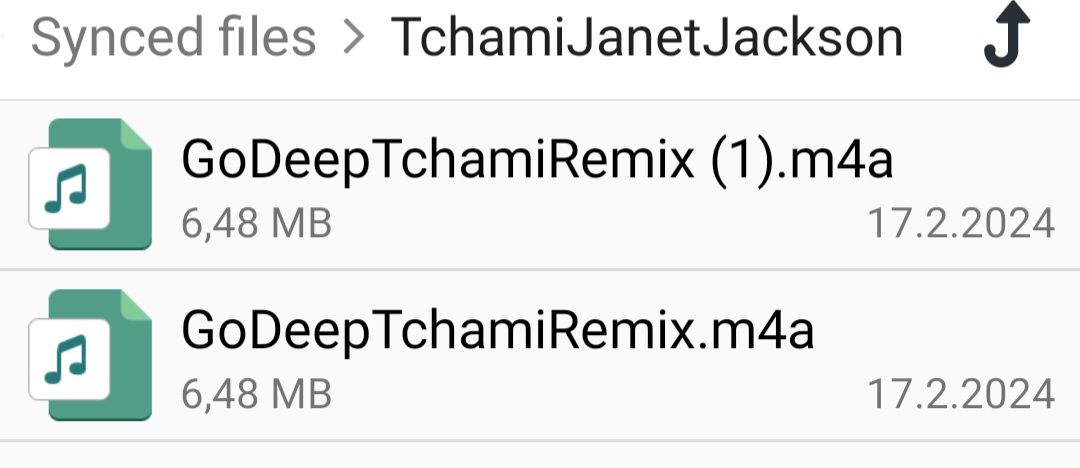
There is a bug in the Spotify App that makes you loose your synced files with more than one artist every time you close the app. I am not the only one experiencing this problem. This reddit post describes the same issue: https://www.reddit.com/r/truespotify/comments/187u1qn/spotify_local_files_duplicating_songs_on_phone/?utm_source=share&utm_medium=web2x&context=3
The workaround described in the post is not working for me and some others. Maybe the workaround just works, if the synced files have no artists set? Some other users have a similar, but not the same problem:
https://community.spotify.com/t5/Your-Library/Local-files-are-synced-but-dont-play/m-p/5845239
https://community.spotify.com/t5/Your-Library/Local-files-with-a-space-in-the-name-get-greyed-out/m-p/5856605
App Version: 8.9.12.599
OS: Android
steps to reproduce:
1. Enable local files on Spotify Desktop (Windows)
2. Create a new playlist with 2 local files. Both files have song info (title and artist) set in their Properties > Details. One song has only one artist. The other one has two artists.

3. While Spotify Desktop is open on a PC in the same network, open the Spotify App on the phone and press the download button for the playlist created previously.
4. The files will be downloaded to the "Synced files" directory on the phone. In the example the subdirectory/filenames will be "TchamiJanetJackson/GoDeepTchamiRemix.m4a" and "RobMayth/AnotherNight2k12ClubRadioEdit.m4a". Both songs are playable on the phone as expected.

5. Close Spotify Desktop while keeping the Spotify App on your phone open. The songs are still playable.
6. Close the Spotify App and wait for a while. Instead of waiting you can also quit the player in the Android drop down menu and force the Spotify App to stop via the Android app settings. Sometimes this needs to be repeated several times.
7. Open the Spotify App. The song with just one artist is still downloaded and playable. The song with multiple artists is marked with an exclamation mark and is not playable anymore. Both files are still present in the "Synced files" directory.

8. Close the Spotify App. Open Spotify Desktop. Open the Spotify App again. The App will start downloading the missing local files again. This results in duplicates in the "Synced files" directory and thus will eat up more and more storage with every repetition.