Fix adding songs to pinned folder on desktop

On the desktop app, whenever I want to add a song to a playlist in a pinned folder, the folder is far down the list instead of at the top. You should fix this.
Accepted answers
All comments

I think @wplumlee1 means this problem (which I have as well)
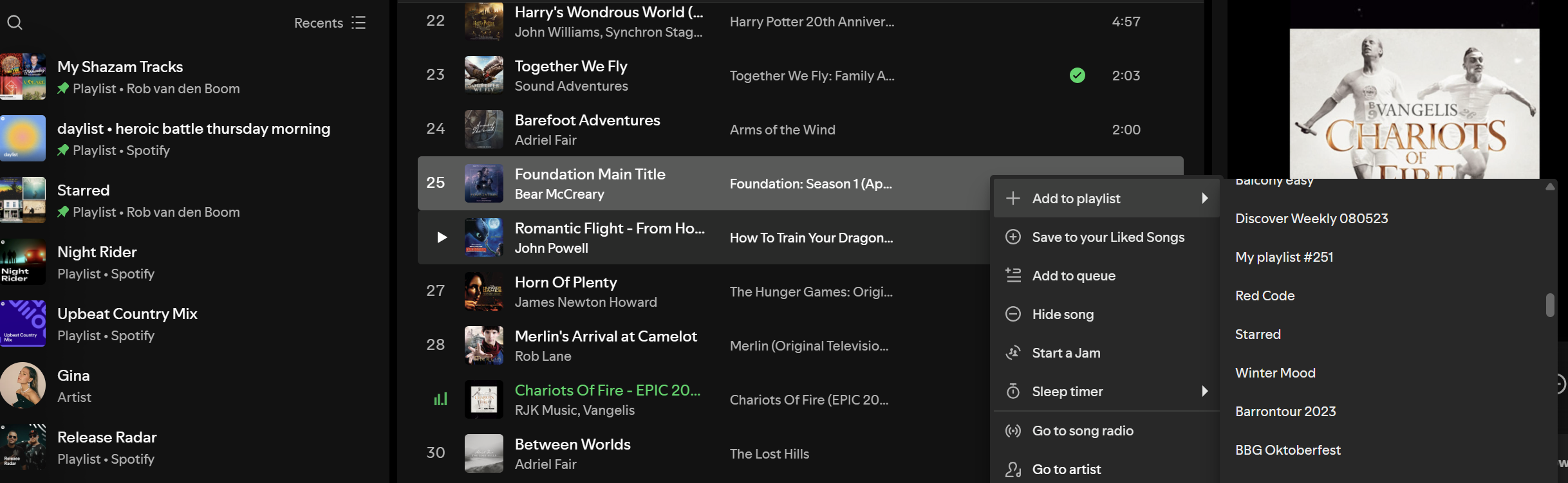
Starred playlist is pinned, but in add to playlist I have to scroll way down.

Ah I see it now thanks for the clarification @040rob.
In that case @wplumlee1 you can simply open your library and sort it by CUSTOM order. Then you can re-order it however you like and it will show up in the "add to playlist" context menu. However, this doesn't change if you have anything pinned. I can see the order exactly laid out in the custom order (except some collab playlists). Check out the screenshot below.
If you need the order to respect your pinned items, for now, the only way seems to be the "plus icon".
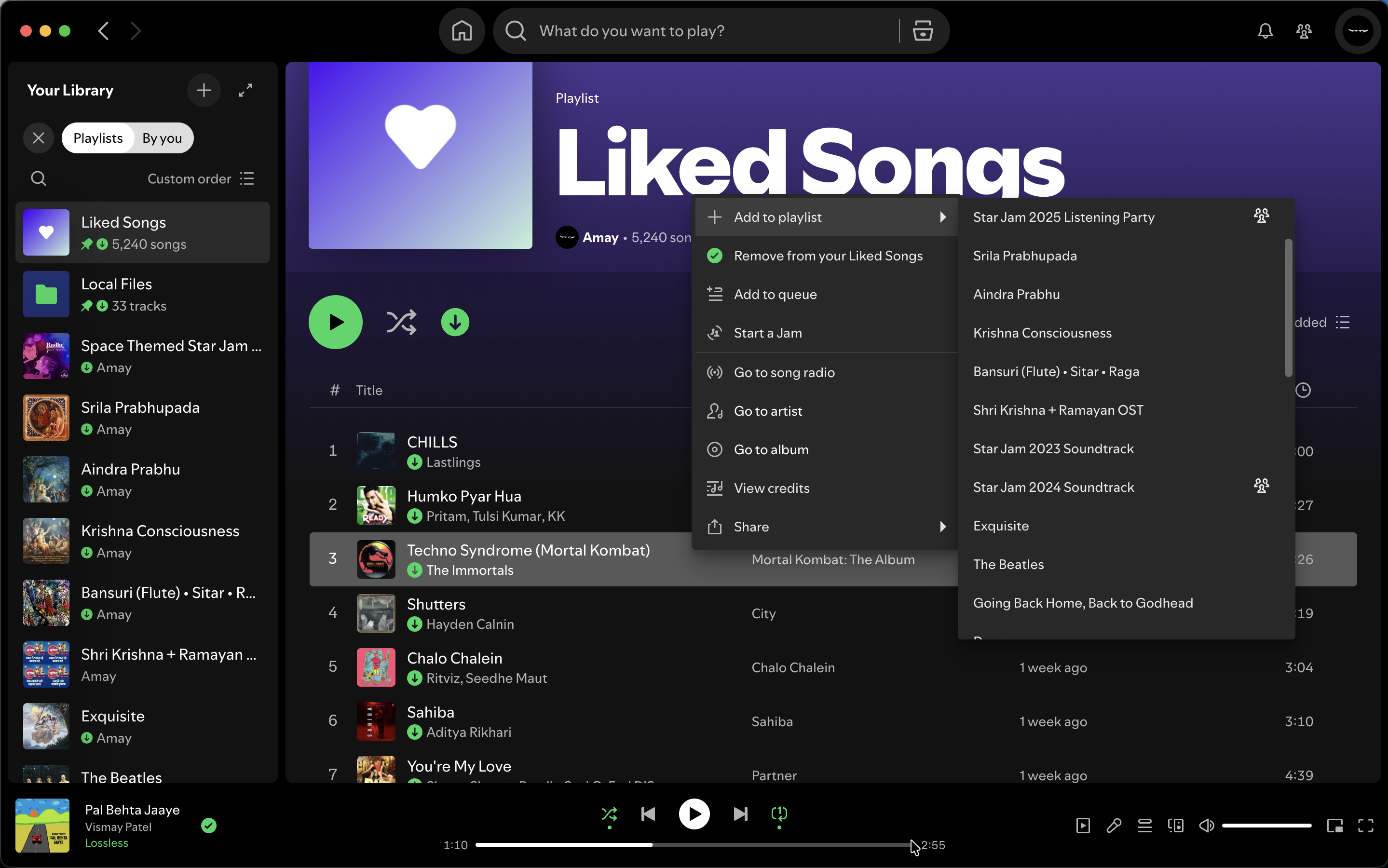
Apparently that is not an option in the Windows version:
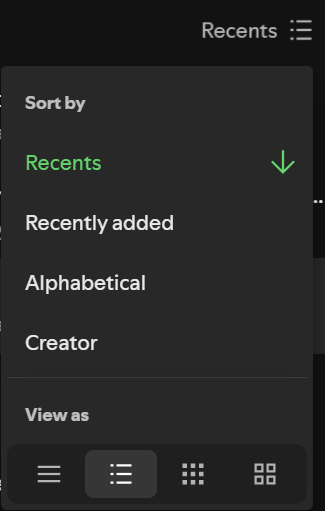

Hey @040rob,
Thanks for the reply!
If you're not seeing the Custom order sorting option, we'd recommend making sure you've selected Playlists first:
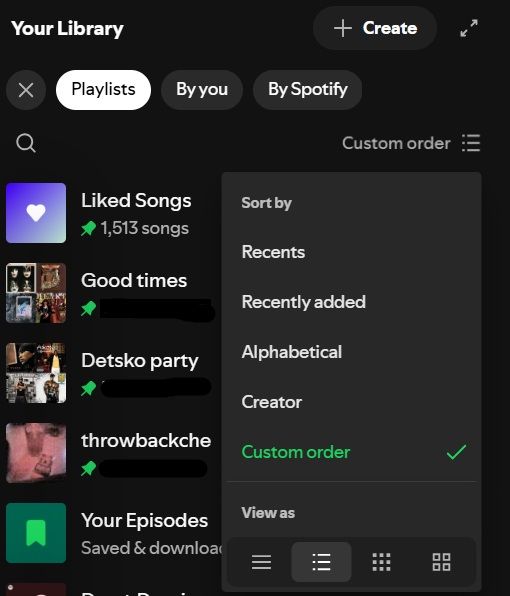
Afterwards, find the playlists in question, unpin them, then drag and drop them somewhere at the top of Your Library and pin them back.
Hope this helps.
Hey @wplumlee1, welcome to the Spotify Community! 🎵
I checked this on my end and I am able to see the folders in the order they are set in the library. I created two folders, pinned them both and then changed their order in the library which reflected in the plus icon flow for adding songs to playlists.
Could you share a screenshot instead? If the folder is pinned it should be on the top but after the list of playlists where it is already added. 🙂