
Accepted answers

This is exactly what I did:
1. make sure all old data (songs etc.) has been completely deleted from phone and external SD card
2.and then uninstall the new application
3. download the "old" application: https://www.dropbox.com/s/u9bwd3qqx2x286h/SpotifyAndroid.apk
4. install the application (make sure you have "install from unknow sources" enabled on your device)
5a start the application, and then log off in case you get logged on automatically.
5b from the login screen, click on your phones menu button, press "reset spotify" and press ok.
6a still at the login screen, press the menu button again and select "select SD Location"
6b at this point it will suggest "/mnt/sdcard" - this IS NOT your external SD card. This is your phone's internal memory card. You need to change it to "/mnt/extSdCard" NOTE: this is from my Galaxy S3, and may vary from phone to phone
7 once this has been changed, test it - note both the phone's memory status and the external SD card's, and see which decreses after saving a few songs
8 If it is now saving to the external SD card, visit Google Play and upgrade to the new version of Spotify (WITHOUT UNINSTALLING THE OLD VERSION or changing any settings)
If this doesn't work for you, then I don't know what will - apologies. Hopefully you were simply not doing part 6b correctly...

Hello,
users with full root access and a little experience with a filemanager and text editor might try to make the adjustments without reinstalling the old version:
1. Backup your original configuration file:
/data/data/com.spotify.mobile.android.ui/./shared_prefs/spotify_preferences.xml
2. add the following line to the xml-file in front of </map>:
<string name="storage_location">/mnt/emmc</string>
> Please be aware that I did not test this, but saw no other differences after doing the manual procedure (install old, adjust preferences and reinstall new)
> Please be aware that the old directory will no be cleaned up. You should remove the old data manually:
/mnt/sdcard/Android/data/com.spotify.mobile.android.ui
> With the setting above new data is stored to
/mnt/emmc/Android/data/com.spotify.mobile.android.ui

This workaround is better throught: Directorybind app
http://forum.xda-developers.com/showthread.php?t=1410262

This (see below) works but just to clarify sure you specify the sdcard name as well as the subdirectories. For me, it was "/mnt/sdcard-ext/Android/data."
@michabessems wrote:It's unbelievable, but it seems there is no option in the new application to do this. However, I managed to fix it.
1. uninstall the new application.
2. download the "old" application: http://download.spotify.com/android/SpotifyAndroid.apk https://rapidshare.com/files/2999426550/SpotifyAndroid.apk
3. rename the file from .zip to .apk
4. install the application (make sure you have "install from unknow sources" enabled on your device
5a start the application, log off in case you get logged on automatically.
5b start the application, click on your phones menu button, press "reset spotify" en press ok.
6. still at the loginscreen, press the menu button again and select "select SD Location"
For a more detailled instruction on how to set the SD location, go to http://www.spotify.com/se/help/faq/mobile/android-how-do-i-store-offline-music-on-the-external-sd-card/
7. Verify if your offline files are downloaded to the correct location using a file browser
8. go to Google Play en upgrade your Spotify installation.
Enjoy!

it works to me. (Galaxy S3) THANKS A LOT!
I have installed old version , configure spotify to use my SDcard and update later using market.
Working in a 64Gb SD card
if someone else need spotify old version I have done some mirrors for download:
https://rapidshare.com/files/3498154317/SpotifyAndroid sdcard.apk
http://depositfiles.com/files/4dbrqnly3
https://hotfile.com/dl/165325562/8e793c6/SpotifyAndroid_sdcard.apk.html
http://www.mediafire.com/download.php?h6cd50z25r5lk4x
http://ul.to/mplx1ziy
http://www.filejungle.com/f/mMuGt6/SpotifyAndroid sdcard.apk
http://letitbit.net/download/42643.4f35fea653699eaf2772f036cb40/SpotifyAndroid_sdcard.apk.html
http://uploading.com/files/get/63cfc84c/SpotifyAndroid%2Bsdcard.apk
http://www.uploadstation.com/file/pp5x9ct/SpotifyAndroid_sdcard.apk
All comments
I dont have this xml file with the last version, why?

Im just lost, i apologies
In the last version of google play and beta version this file doesnt exists:
/data/data/com.spotify.mobile.android.ui/./shared_prefs/spotify_preferences.xml
😕
I use DirectoryBind tweak

I use "Root Explorer (File Manager)" on Android.
Navigate to /data/data/com.spotify.mobile.android.ui/./shared_prefs/
hold on spotify_preferences.xml and use the Text Editor.
Other File Exlorer didn't show the Path \data\data\
Now, with a explorer with root permisions and with adb shell:
root@XXXX:/data/data/com.spotify.mobile.android.ui # ls -la
drwxrwx--x app_141 app_141 2012-07-07 02:18 cache
drwxrwx--x app_141 app_141 2012-07-09 15:44 databases
drwxrwx--x app_141 app_141 2012-07-07 02:17 files
drwxr-xr-x system system 2012-07-07 02:16 lib
😕 Spotify version: 0.5.1.15.g81977995

Has anyone just tried to move the app to the SD Card? Can you move the app to the External SD Card?
Has anyone tried putting something in the init.d
so this is what I did. I made a folder on my /mnt/extSdCard called Spotify
in a terminal session.. not sure if you can do this if you are not ROOTed but..
mount -o bind /mnt/extSdCard/Spotify /sdcard/Android/data/com.spotify.mobile.ui
this tricked it into thinking that the local SD card where all the files get stored get pushed onto the External SD.
kind of a stupid trick.. and I don't know enough about android to add that to the init.d "yet" but i am working on it.
i think it's the init.d anyways.. good luck.. this seems to work
This workaround is better throught: Directorybind app
http://forum.xda-developers.com/showthread.php?t=1410262

Is there anyway you can repost the apk? Dropbox says there is nothing there =(
@suidaso wrote:This workaround is better throught: Directorybind app
http://forum.xda-developers.com/showthread.php?t=1410262
wow. that saves me some time.. init.d research started to scare me!
I just received this from Spotify.
Hi,
Thanks for getting in touch.
We are extremely sorry to hear this and please accept our apologies for the inconvenience caused.
We would like to tell you that the feature to save your music on the external SD card is missing from our latest Android app and we are aware of it already. We would also like to tell you that we are working hard in order to reinstate this feature to our Spotify app in our next update, pretty soon.
In the meanwhile, we would request you to to create some space on the internal memory by shifting your saved data (except Spotify) to the external SD card, so that you won't face any problems using Spotify.
We know that it is an inconvenience and we are really sorry for this once again and promise that we will come up with the solution soon.
During this time, we appreciate your patience.
Kind regards
Love
Spotify Customer Service - Cambridge

took them over a month to admit this huh? it's shocking how such an important feature was left out... i wonder how much longer it'll be for this update to get released.
Well at least the seem to be working on it.

Yes, I'd expect a fix in no less than 5 months.
This (see below) works but just to clarify sure you specify the sdcard name as well as the subdirectories. For me, it was "/mnt/sdcard-ext/Android/data."
@michabessems wrote:It's unbelievable, but it seems there is no option in the new application to do this. However, I managed to fix it.
1. uninstall the new application.
2. download the "old" application: http://download.spotify.com/android/SpotifyAndroid.apk https://rapidshare.com/files/2999426550/SpotifyAndroid.apk
3. rename the file from .zip to .apk
4. install the application (make sure you have "install from unknow sources" enabled on your device
5a start the application, log off in case you get logged on automatically.
5b start the application, click on your phones menu button, press "reset spotify" en press ok.
6. still at the loginscreen, press the menu button again and select "select SD Location"
For a more detailled instruction on how to set the SD location, go to http://www.spotify.com/se/help/faq/mobile/android-how-do-i-store-offline-music-on-the-external-sd-card/
7. Verify if your offline files are downloaded to the correct location using a file browser
8. go to Google Play en upgrade your Spotify installation.
Enjoy!

Is this some sort of joke? After charging me for a month of subscription I cant even use the application????? I'm not downloading some third party app from an external site and hacking my way around jsut to save music files. Good bye spotify subscription.

Can we expect any official solution from the developers?

This worked for me (Samsung Galaxy SII). Thanks much for posting the old app, which by the way is sooooo much nicer than the new one. The new one is as close to useless as you get. Really a pain to use on a mobile.
it works to me. (Galaxy S3) THANKS A LOT!
I have installed old version , configure spotify to use my SDcard and update later using market.
Working in a 64Gb SD card
if someone else need spotify old version I have done some mirrors for download:
https://rapidshare.com/files/3498154317/SpotifyAndroid sdcard.apk
http://depositfiles.com/files/4dbrqnly3
https://hotfile.com/dl/165325562/8e793c6/SpotifyAndroid_sdcard.apk.html
http://www.mediafire.com/download.php?h6cd50z25r5lk4x
http://ul.to/mplx1ziy
http://www.filejungle.com/f/mMuGt6/SpotifyAndroid sdcard.apk
http://letitbit.net/download/42643.4f35fea653699eaf2772f036cb40/SpotifyAndroid_sdcard.apk.html
http://uploading.com/files/get/63cfc84c/SpotifyAndroid%2Bsdcard.apk
http://www.uploadstation.com/file/pp5x9ct/SpotifyAndroid_sdcard.apk

How do I do this because I have Icecreamsandwich Atrix and it doesn't have a home button. 😕

Is there an ICS menu button that is available? If not you might be out of luck. Spotify have stated this function will return with the next release. No idea when it will be out though

Thanks for this post. I can confirm this works. I have a Samsung Galaxy SIII 16 GB with a 64 GB MicroSD card. After following the steps you mentioned Spotify uses the 64 GB card.
Thanks a lot

Well I followed the instructions and I think it's worked so thankyou. The reason i say think is that my storage card is saying that there's nothing in but my usb card which was full to the brim before has now emptied to a great extent.
i had some trouble formatting my SDXC card and eventually managed to do it fat32.
Would there be any reason that the SCXC card say's there's nothing in it but I can still play offline?

Spotify, you say that this will be fixed in your next update expected to come "pretty soon". Any chance you can be more specific than this?

Hey guys,
According to me, using the old app works, but you gotta admit: it sucks, especially on ICS.
Well, if you're rooted, there's a perfectly stable solution:
An app was briefly mentioned in the previous page - DirectoryBind. Well, it obviously deserves some more attention: thanks to that App, I got the most up-to-date version of Spotify working perfectly on ICS (CM9 on Galaxy S3) and storing everything on an external 64GB MicroSD card. It got me searching for a while, but if you want to do the same I made a small tutorial. Here's what you should do (it's a detailed guide but shouldn't take very long!):
I. Get the App and Set it Up
- First of all, download DirectoryBind from this thread in XDA-Developers (look at the bottom of the first post and download the latest version in "Attached Files" - as of today, this is version 0.2.0o)
- Move it to your phone if not already done. Make sur that Unkown Source installations are enabled (Settings > Security > Unknown Sources). This setting allows you to install apps from outside the Play Store
- Install the .apk by navigating to it in any file explorer (I use Astro, free and available on Play Store)
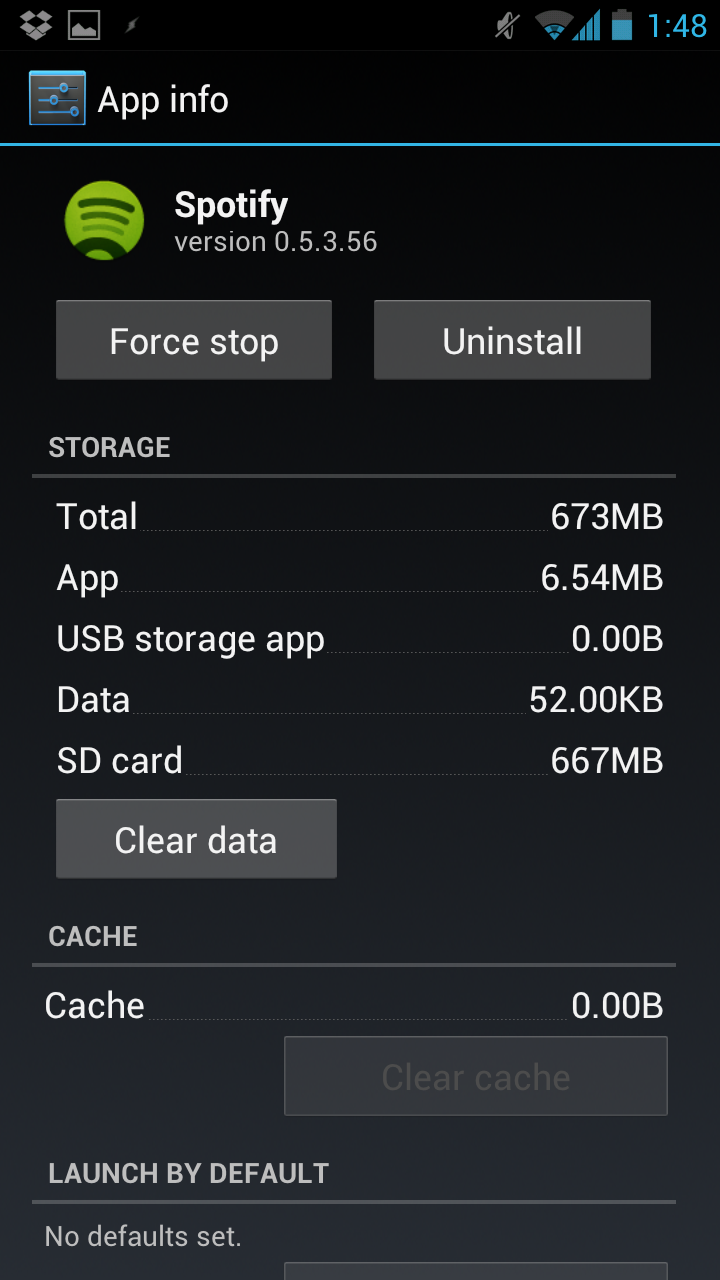
- Make sure Spotify is closed! Use "Force Stop" in application management (Settings > Application Management) to be on the safe side:
- Open DirectoryBind, press the menu key and go to Settings (see screenshot below):
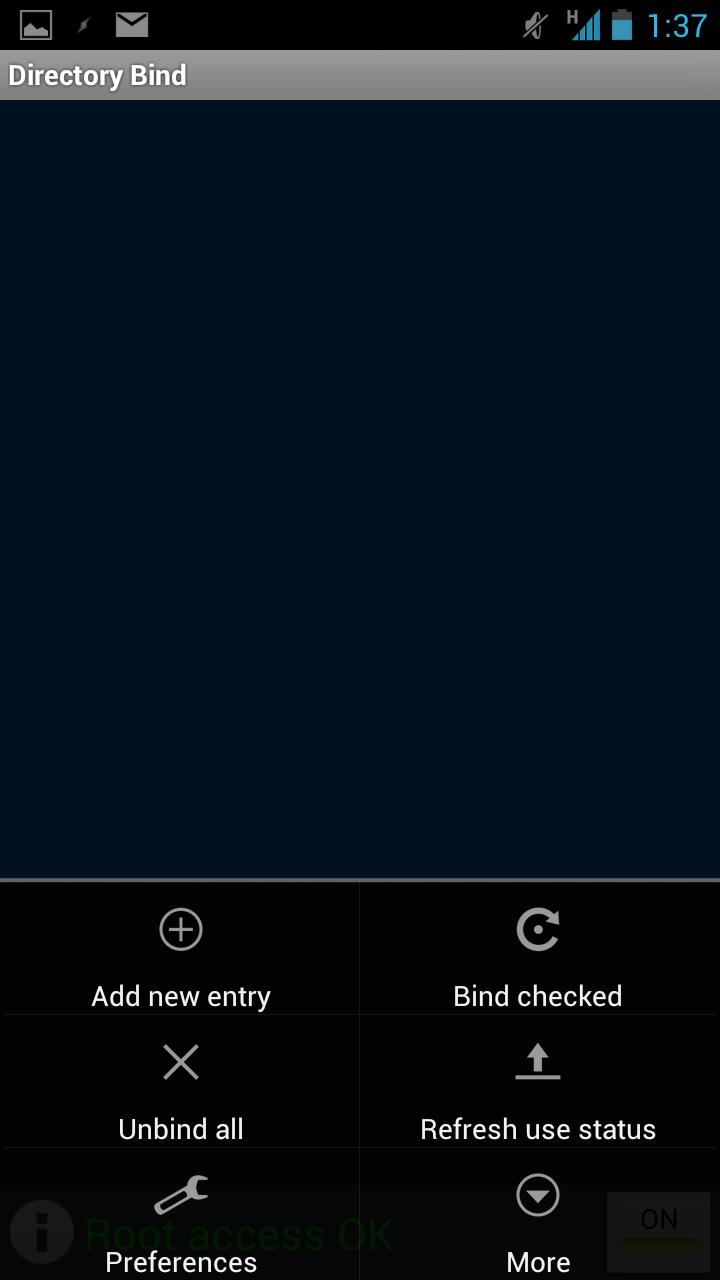
- Make sure the following are checked: Bind on Boot, Handle USB Connection, Alert on Unbind Fail, Alternate dbase mgmt, Persistent Service. Exit the settings.
II. Make the Association with your SD Card
- Press the menu key and "Add new entry"
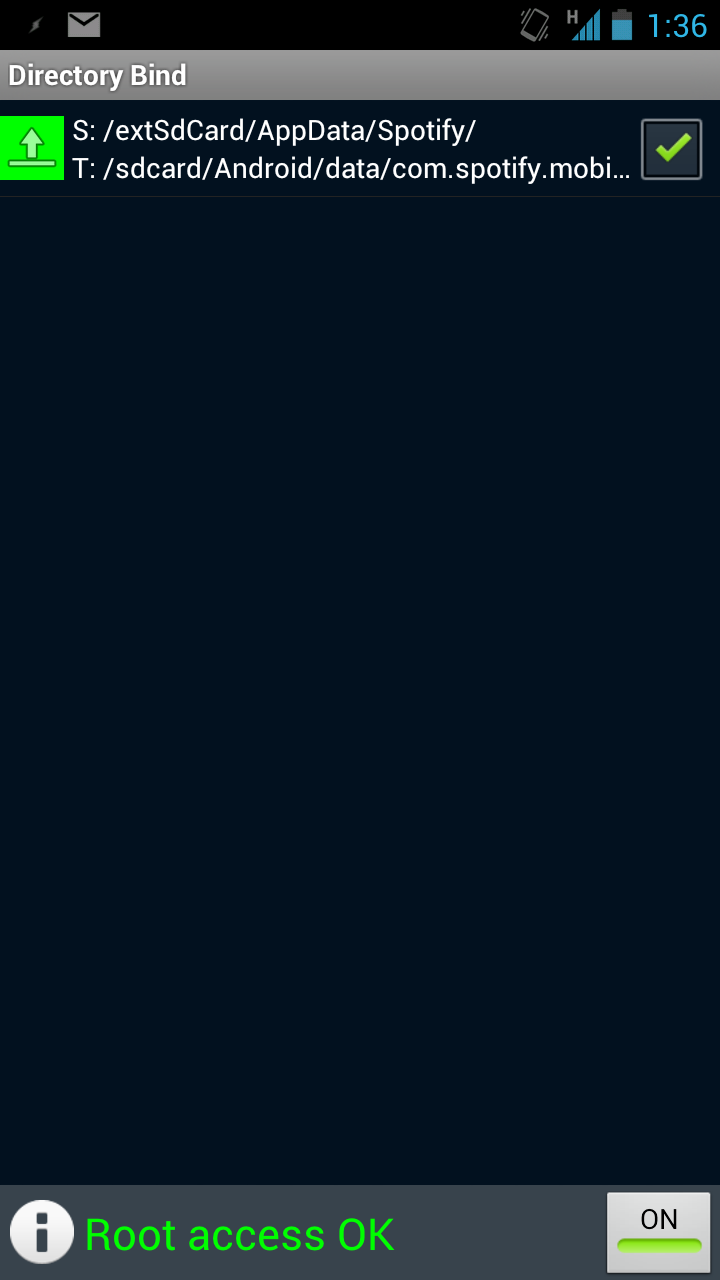
- Long-Press on the Data Path textbox to navigate to where you want your Spotify data on your external SD Card (My path is "/extSdCard/AppData/Spotify/" , for example). These folders have to be previously created using a file explorer
- Long-Press on the Target Path textbox to navigate to where your current Spotify data is stored (My path is "/sdcard/Android/data/com.spotify.mobile.android.ui)
Note: I know it's illogical that the source is where you want your data and the target is where it actually is, but bear with me, this is how it works.
- If you already have some files downloaded and insist on keeping them, then also check the box called "Transfer Files from Target to Data". Otherwise, delete everything that's in the original data folder before going through with this.
- Press "Add"
- When you're back on the app's main screen, make sure that the checkbox for that new entry is checked and that it shows a green disk - meaning the entry is mounted - or a green arrow pointing up - meaning that the entry is currently in use, as seen on the screenshot below:
- One last, important thing: make a backup of that entry, so if there's a problem, you can retsore it easily. Press Menu > Backup Database.
- Just to make sure that everything is set correctly, reboot your phone a couple of times and check if the links are still working OK. Otherwise restore the database (you did back it up, right?) and reboot again.
That's it! You're set.
Don't forget to say Thanks to Slig on the original xda-developers thread for that great app!
In order to understand what you just did:
What you have just done is writing a Symbolic Link between Spotify's regular storing location to the foler of your choice on your external SD card. This link operates on the Operating System level and therefore is totally transparent to Spotify. Symbolic links are actually a widespread practice for example in software backward-compatibility. This means that it is usually perfectly safe to use them.
Alright, I'll come back here from time to time to see if you guys are interested and/or need help.
Cheers!
It's unbelievable, but it seems there is no option in the new application to do this. However, I managed to fix it.
1. uninstall the new application.
2. download the "old" application: http://download.spotify.com/android/SpotifyAndroid.apk https://rapidshare.com/files/2999426550/SpotifyAndroid.apk
3. rename the file from .zip to .apk
4. install the application (make sure you have "install from unknow sources" enabled on your device
5a start the application, log off in case you get logged on automatically.
5b start the application, click on your phones menu button, press "reset spotify" en press ok.
6. still at the loginscreen, press the menu button again and select "select SD Location"
For a more detailled instruction on how to set the SD location, go to http://www.spotify.com/se/help/faq/mobile/android-how-do-i-store-offline-music-on-the-external-sd-ca...
7. Verify if your offline files are downloaded to the correct location using a file browser
8. go to Google Play en upgrade your Spotify installation.
Enjoy!
Michabessems - Your post is so helpful, thank you! Worked perfectly for me!
@user-removed wrote:This post is so helpful, thank you! Spotify should help its users by allowing the move to SD.
Glad I could help. Is it working well on your device? I'm not getting a lot of feedback from people who have tried it.
Cheers
Working perfect. thanks!

Thanks for this!
I did the other way (downloading the old app, changing the stuff n derp) but it was a hassle. and It seemed like when I went to use the sdcard as an external storage device (connected my phone to my computer through usb), spotify would re-link with the internal storage device, and I'd have to do the whole process all over again.
Seems like it's working now, I'm syncing some all my music now. He should totally submit it to the google play store.

Thanks!! I had to use the rapidshare link provided in another post on the forum, but other than that this worked great!!
It's unbelievable, but it seems there is no option in the new application to do this. However, I managed to fix it.
1. uninstall the new application.
2. download the "old" application: http://download.spotify.com/android/SpotifyAndroid.apk https://rapidshare.com/files/2999426550/SpotifyAndroid.apk
3. rename the file from .zip to .apk
4. install the application (make sure you have "install from unknow sources" enabled on your device
5a start the application, log off in case you get logged on automatically.
5b start the application, click on your phones menu button, press "reset spotify" en press ok.
6. still at the loginscreen, press the menu button again and select "select SD Location"
For a more detailled instruction on how to set the SD location, go to http://www.spotify.com/se/help/faq/mobile/android-how-do-i-store-offline-music-on-the-external-sd-card/
7. Verify if your offline files are downloaded to the correct location using a file browser
8. go to Google Play en upgrade your Spotify installation.
Enjoy!