Users getting a black screen when trying to watch music videos on full screen

We've received reports from Windows users who are getting a black screen when trying to watch videos in full screen mode on the desktop app.
Comments

Hey @ZianZ, thanks for asking in the Community! 🎵
Can you confirm if this is happening to all content or just specific content, such as from a particular artist or album? You can also check the web player to see if the issue appears there as well.
If the issue only occurs on the desktop app and with all your content, I'd suggest a clean install of the Spotify app. Check out: how to perform a clean install.
Let me know how it goes. 🙂

I had the same problem.
It happens on all artists and albums. I tried reinstalling spotify and turning off hardware acceleration, but it still doesn't work
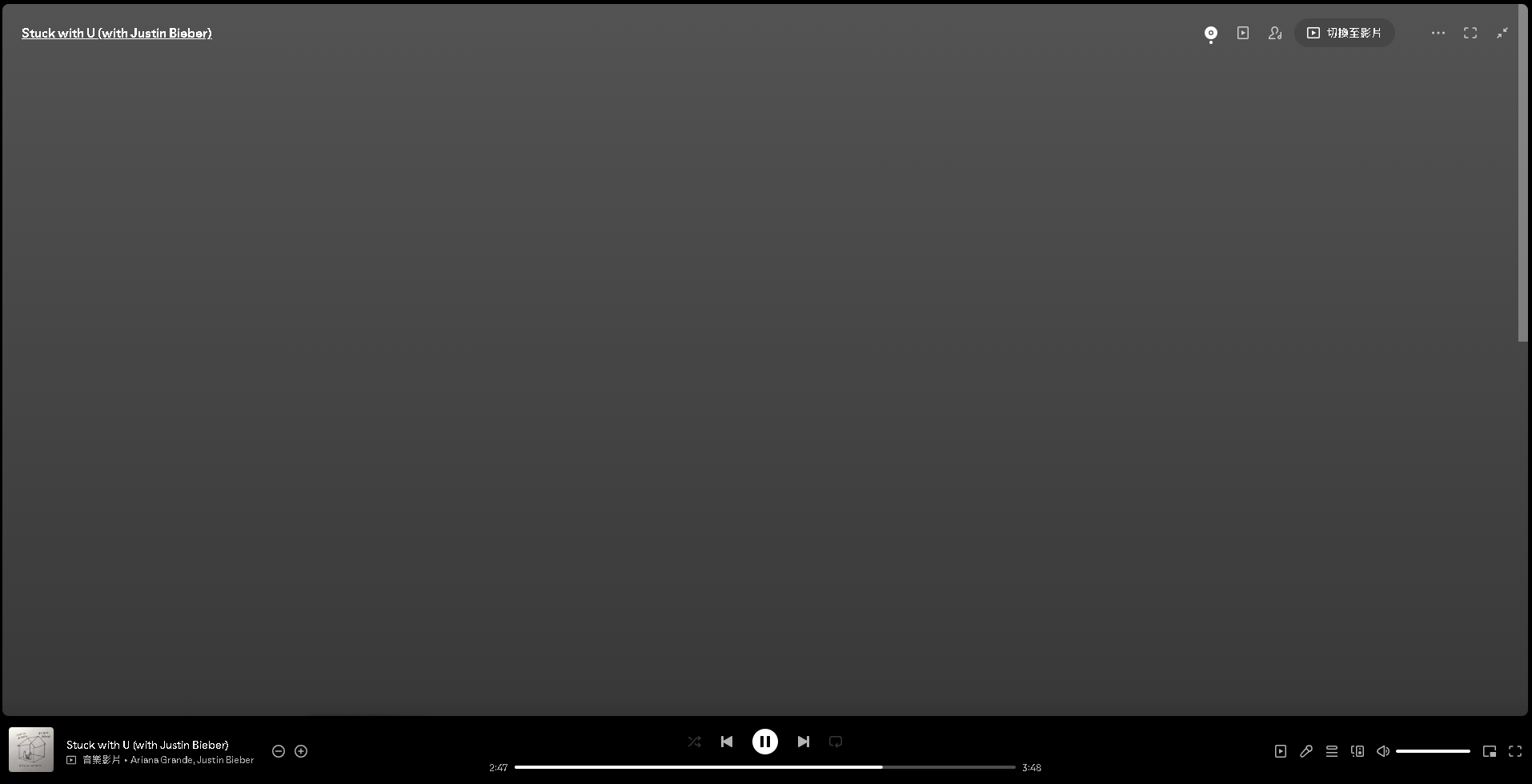
that can run on wed player, but not all
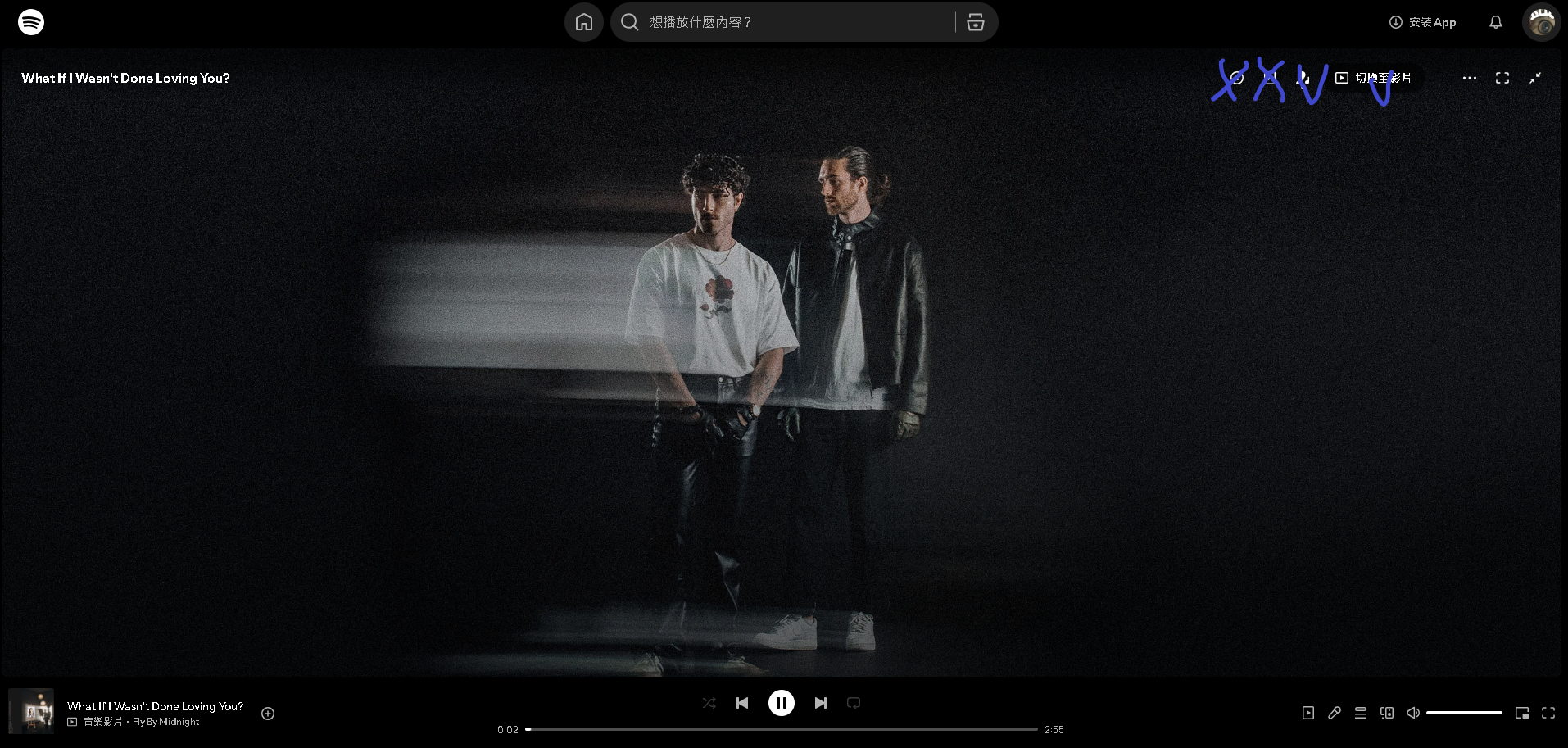

Same here. Clean Install seems to be no help. Also, this applies to all songs/artists I have tried so far.

Hey there folks,
Thanks for all your replies.
We'd suggest you try running the app in Safe Mode with Networking to rule out any issues with your default Windows settings and basic device drivers. Give it a try and let us know how it goes.
If the above doesn't do the trick, we'd like to gather some additional info. Please send us:
- The make/model and OS of the affected device.
- The exact Spotify version you're running there.
- Are you using a VPN service? If yes, we'd suggest you set Spotify as an exception. Keep in mind Spotify doesn't officially support VPN. This means that issues with the app while using VPN are expected behavior.
- We'd like to know if it's always behaved like that or if this behavior started after a specific event/update.
Keep us in the loop!
I tried to run it under Safe Mode with Networking, but
- Networking didn't work on it (Yes, I was on Safe Mode with Networking. I tried booting to it twice, still same issue)
- Spotify didn't open
Here is the answers for the info you asked for;
- I use Windows 11 Pro, on a PC with a GeForce RTX 4070ti, and a AMD Ryzen 7 7800X3D.
- Not sure where to check for the Spotify Version, but on the Microsoft Store it seems to be version 1.262.580.0
- No, I do not use a VPN
- The feature is new so it just started happening

Hey @aiden_186,
Thanks for checking and for the info you've provided!
I'd also recommend clearing the hosts file, since it might be corrupted, as well as installing Spotify directly from the Spotify site since you've mentioned using the Microsoft Store one. You can follow the steps for a clean reinstall again when doing this.
Let us know how it goes.
It seems like there were no Spotify Links in the hosts file. Also, redownloading directly from Spotify seems to be no use.

Hi there @aiden_186,
Thanks for keeping in touch and for trying out our recommendations.
Just to check, did you also try disabling Hardware Acceleration from the app's settings? Additionally, could you check if you have the same issue while using the Web Player on that same computer?
Lastly, we recommend making sure your graphic card drivers are up-to-date. You can also try reinstalling them.
Keep us poted!

Plan
Free
Country
U.S.A.
Device
Laptop
Operating System
Windows 11
My Question or Issue
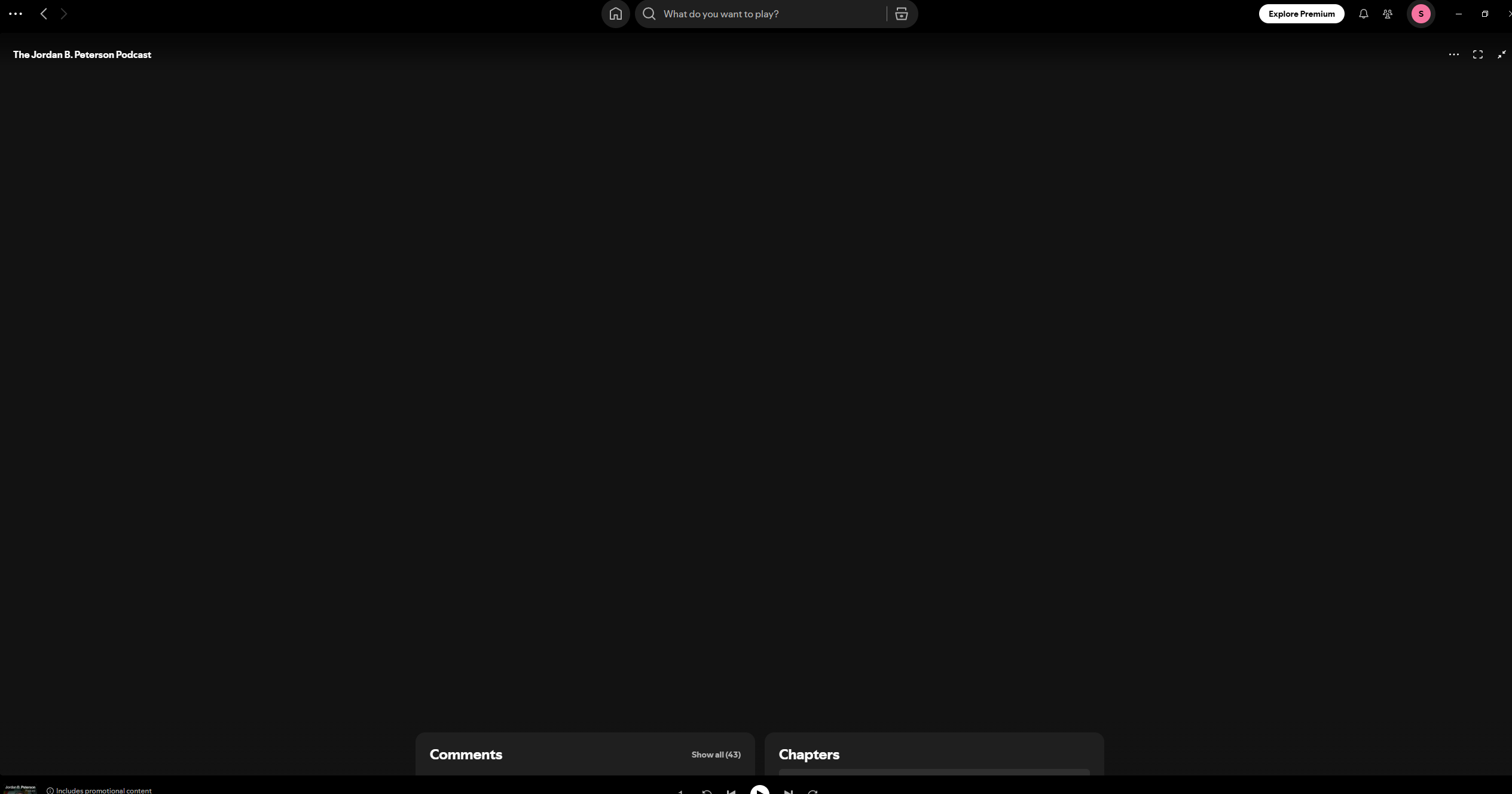
A couple weeks ago I noticed that the Expand Now Playing view button resulted in a black/absent/missing video, where it used to expand the video for the video podcasts I listen to. The video plays fine in the embedded/standard Now Playing window, but expanded or full screen do not show anything. Screenshots below.
There are 2 Expand buttons (top of view, and overlain on video), but both result in the same outcome.
I did try the reinstall directions found here: https://community.spotify.com/t5/Desktop-Windows/Troubleshooting-Windows/td-p/532796

I had the same problem, and I have solved it.
Steps:
- Type "edit the system environment variables" in the search bar, then click on it
- Below the Performance tab click on Settings
- Click on "Let Windows choose what's best for your computer", then click apply
Hey there @sbrockway,
Thanks for posting in the Community and welcome.
We understand you performed a clean reinstall of the app, but we'd like to check, have you followed these steps? If you haven't, give it a try.
If that doesn’t do the trick, keep in mind it's possible to download the app from both the Microsoft Store and our web page here. So, in this case, if you installed the desktop app from the web page, try to uninstall that version and try installing the one from the Microsoft one or vice versa.
Now, if the issue persists, we'd like to gather some additional info. Please send us:
- The exact Spotify version you're running on your computer.
- Does this happen when playing a specific show? If yes, share with us the link to it.
- Is this happening over WiFi? Ethernet? Both? Does this happen if you change the internet connection you're using? If possible, you can create a hotspot on your phone and connect your computer to it, to see if you notice any difference.
Keep us in the loop!

THANK YOU

I have the same problem, on laptop and desktop (Windows 11). Clean install from different sources didn't help.
- Spotify for Windows (64 bit) 1.2.62.580.gb27ad23e
- It happens with all video podcasts.
- Both, wifi and ethernet.
- Mobile hotspot too.
Thanks for fixing.
Hey there @Thoemsi,
Thanks for your reply here and welcome.
You can also try the following to see if you notice any difference:
- Clearing the host files. You can follow these steps for that.
- Try running the app in Safe Mode with Networking to rule out any issues with your default Windows settings and basic device drivers. Follow this guide to do it.
If the above doesn't do the trick, we'd like to gather some additional info:
- Do you use a VPN service? If yes, try setting Spotify as an exception. Keep in mind Spotify doesn't officially support VPN. This means that issues with the app while using VPN are expected behavior.
- Does this happen when using the web player?
- Does this happen on a different computer? You can ask for the computer of a relative or a friend to open your account there and check.
We'll be on the lookout for your reply!
- No relevant host entries
- I'm unable to start the laptop in safe mode with networking.
- No VPN
- No, web player works fine. (It's also way faster when playing music, but unfortunately lacks some features.)
- Also, Miniplayer works fine. (But it's very unusable. Resizing nightmare.)
- Yes, as mentioned it happens on laptop and desktop.
Hey there @Thoemsi,
Thanks for all the info you've shared with us.
We really appreciate all the steps you've followed so far. As the next step, we'd recommend trying to flush your DNS cache. To do it, you can follow these steps:
- Press the Windows key + r.
- Type CMD, or command prompt, in the Windows search bar.
- Now run the command prompt with administrative rights.
- Next, type ipconfig/flushDNS and run the command by pressing the Enter key.
- Wait for the DNS cache to be flushed and exit the command prompt.
- Afterward, open Spotify and verify if this behavior persists.
If this behavior persists, we'd like to continue isolating this behavior, so please send us the following:
- Does this happen if you open a different account on the affected devices to see if you can replicate it? You can also create a free test account to check if the issue persists there.
- Did you notice if this started to happen after a specific event such as an OS update?
- Send us a video recording of what's happening on your side. You can attach the video to your next reply in mp4 format, or you can also upload it to YouTube or Google Drive and make it public, so we can visualize it.
We'll be arround!
DNS flushed, nothing changed.
But it works with a different account!
Video of the problem with my premium account attached.

Hey @Thoemsi,
Thanks for your response and the video.
Can you also try disabling hardware acceleration, running the app as administrator and in compatibility mode with Windows 10?
@sbrockway, are you still experiencing the issue?
Keep us posted.
- Hardware acceleration doesn't change anything.
- Running the app as an administrator works! (Just like running it with another account or with the same account in the browser.)
- There doesn't seem to be a compatibility mode for Microsoft Store apps.

running as administrator works !

Plan
Premium
Country
United States
Operating System
(Windows 11)
My Question or Issue
The expanded now playing view is not working for me I've tried a fresh install, installing from Microsoft store and clearing cache.
Unfortunately, running the app as administrator doesn't work anymore. The video is gone.
Hey folks,
@Thoemsi, thanks for the update! Can you make sure you have "Animate controls and elements within Windows" toggled on? Here's how:
- Press Win + R to open Run.
- In the new window that shows up, type the following: SystemPropertiesAdvanced and press Enter.
- Under "Performance", make sure Animate controls and elements within Windows is switched on.
@TyTheManager, can you try what was suggested in the thread already, as well as the above, and let us know if that makes a difference?
In case the issue persists afterwards, it'd be great if you can let us know the Spotify version you're currently running so that we can investigate this further.
Keep us posted.
My system was optimized for performance, only some text smoothing was active. Now, with "Animate controls and elements inside Windows" switched on, it works even without running the app as Admin.
The app still has massive performance problems, however. Lagging when starting, playing, opening menus, etc. Even on my system running an i9 processor and 128GB ram. In the browser, performance is much better.
I take that back. Performance seems much better now. I'll keep an eye on it.
I have tried the previous suggestions to no avail, I was able to get album covers to work if I zoom to 120% but still no artist image.
Spotify for Windows (64 bit)
1.2.63.394.g126b0d89
Both monitors are 1920x1080 and it works on neither
Scratch that I went back to try SystemPropertiesAdvanced again I unchecked the box rechecked and chose custom and hit apply and it is working now

you dont need to click on "Let Windows choose what's best for your computer", simply pressing the first one being "Animate controls and elements inside windows" does the job 🙂 also thank you finding this helped me solve this issue


Checking "Animate controls and elements inside windows" worked for me instantly! (Win 10, desktop app) Thanks to @dagermohamed and @twisted2777
Plan
Premium
Country
Sweden
Device
PC
Operating System
Windows 10
My Question or Issue
Whenever i go into fullscreen or/and click the expand button on a song or music video, the whole screen just turns into a blank color (color matching the song cover).
Doesn't matter if i click "Show Artist picture" or "Show Cover" in the top right where the fullscreen buttons are. Nothing changes and it's still just the same color