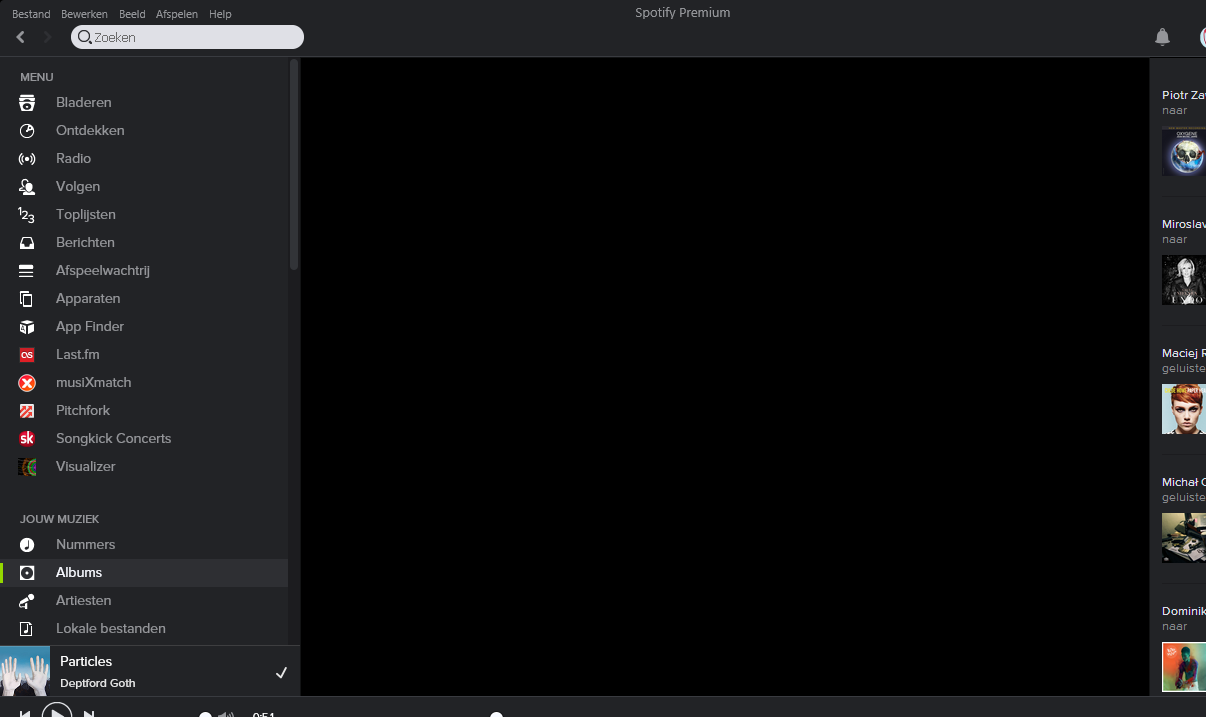
Spotify Windows player Discovery screen frozen display

Hello!
After the recent update, the discovery screen appears to freeze up graphically on my computer. I can still click links that are 'invisible' and even scroll down and things seem to move by (although I don't see any change except that my mouse pointer turns into that pointing hand that normally shows up when you mouse over a link; the locations that it turns into a pointer change). All other sections appear to work just fine in the desktop app.
It seems that the page just doesnt render beyond the point to where it finishes loading, no content shows up at all, but it's there... just not graphically.
Was there some kind of change in how the discovery section renders? Maybe using hardware rendering or something?
Edit: this affects Apps as well, or at least so far the Pitchfork app.
Accepted answers

If you are on Windows:
Completely exit Spotify.
Hit start > type "run" > hit enter, copy and paste:
%APPDATA%\Spotify\spotify.exe --disable-accelerated-layers --disable-accelerated-fixed-root-background
into the box and press ok.
Peter
All comments

Hey guys! @DJSmooth @loveangelica63 @mollygauss77 Could you all please confirm:
1. You've tried the previous troubleshooting (updated graphics card)
2. Your OS and Spotify app version
3. Post screenshots of what you're seeing if possible
We'll take it from there!


The current update releases haven't worked for me, either. Discovery/radio pages are still black as well as the "share music with friends" window. I've been emailing back and forth about this with the tech support but they've been silent for a few weeks now. Too bad that the update didn't work :c
If you guys are using Windows, does starting Spotify like outlined in this post fix the issue?

Peter, yes if start spotiy as you suggested everything is fine, discovery page shows properly, and i can share music. If i forget and just sign on as i should be able to, the discovery page is blank/white as is my share dialogue box. Thanks for the help. As a premium paying customer, this is extremely frustrating .
Just double checked, this has been raised as an ongoing issue with v0.9.6 so the Spotify team are aware of it.
Any idea on when this may be fixed?
If that is directed at me unfortunately I can't answer since I don't work for Spotify.
I would hope for the next release, but its pretty hard to tell!
Thanks Peter, & just in case anyone working for Spotify is reading, This is still an issue. Every morning I have to copy & paste this
%APPDATA%\Spotify\spotify.exe --disable-accelerated-layers --disable-accelerated-fixed-root-background
in order for my spotify to work properly. As a premium member, I shouldn't have to jump thru these hoops, it's extremly frustrating.
@DJSmooth wrote:Thanks Peter, & just in case anyone working for Spotify is reading, This is still an issue. Every morning I have to copy & paste this
%APPDATA%\Spotify\spotify.exe --disable-accelerated-layers --disable-accelerated-fixed-root-background
in order for my spotify to work properly. As a premium member, I shouldn't have to jump thru these hoops, it's extremly frustrating.
Appreciate its a pain, I've bumped the escalation so the guys know it is still an issue. Just for identification purposes what version of the client are you currently using (Help > About)?
What I would suggest in the mean time to save you from having to copy and paste all the time:
1. Right click on the Spotify Icon on your desktop > Copy.
2. Right click on space on the desktop > Paste. You should get a copy of the Spotify Shortcut.
3. Right click on the new icon > Select Properties > Shortcut > In the Target box add "--disable-accelerated-layers --disable-accelerated-fixed-root-background" at the end.
4. Press ok.
Then use that icon to launch Spotify - should work (hopefully!).
Can't believe this is STILL an issue, I still have to jump thru hoops for this to work properly, what do I need to do to get a proper update?

For those struggling with this who are running HP laptops with dual graphics options, set spotify to always use "power saving" graphics and this will solve the issue (untill a permanent fix becomes avaliable)


Hey,
Having this issue again with version 0.9.8.296.g91f68827.
Luckily it's only album, artists and "covers" of my playlists. Still annoying though :C
Cheers!

You're not alone. The switches still seem to work thank goodness.
I know 😄 I had the same issue with the previous version of the app.
I find it ridiculous that I have to add commands to shortcuts. It simply means that someting in the app is broken since it used to work without any problems (no hardware/driver changes on my pc).
Thank you for your anwser jwylot! 🙂 Hopefully something will change 😉
You're welcome. It would help if you could post very briefly there too. I'm going to escalate to staff tomorrow 🙂

Hi, I found that this trick solved a huge no. of problems for me -
right click, properties, go to the compatability tab, and uncheck the compatabilty box.
Can you let me know if this works for you?
thx - c

My Spotify is giving that frozen screen.
Where do I go to change that Settings ?
Thnaks,
Carla
Haven't looked at this, but some of the links below might help -
http://www.dummies.com/how-to/content/spotify-playback-preferences.html
I hope this helps - c

Thank you, thank you, a thousand times thank you. the disabling thing totally solved it.

@psykez wrote:For those struggling with this who are running HP laptops with dual graphics options, set spotify to always use "power saving" graphics and this will solve the issue (untill a permanent fix becomes avaliable)
HP ZBook 14 - dual graphics (Intel & AMD).... I can confirm the issue.... and the fix!
Guess it needs to be forced to only use one video card (the Intel...)

I cant see anything on either my Browse, discover, radio and follow pages in my spotify program!!! what can i do about this???
Thanks
@dutchify14 wrote:I cant see anything on either my Browse, discover, radio and follow pages in my spotify program!!! what can i do about this???
Thanks
Try this:

Thanks, it worked

hi i saw how you solve the black screen on spotify what ı dıdnt understand anythıng on how you do ıt can you explain the same thing to me more simple please ?
There isn't really any way to do it more simply.
If you are on Windows, if you right click on the Spotify icon on your desktop, then select Properties, then go to the Shortcut tab and copy and paste:
--disable-accelerated-layers --disable-accelerated-fixed-root-background
Onto the end of the text in the Target box that should also do the trick.

darn it Spotify team why can't you guys just sort this out yet, just spent 3 hrs wondering why my laptop was going into melt down and then remembered this from my main pc, and boom it's working PERFECTLY.
FOR GODS SAKE, SORT IT OUT...... Plus what the **** has happened to suggested songs AGAIN, i am now getting completely unrelated songs to the artists/playlist's i'm listening to.....
According to this doc here, which shows Chromium switches, the following spotify.exe switches can be used to switch off various hardware/GPU accelerations in Spotify. This might be handy for anyone who has experienced issues after latest version switch to 0.9.4.169.gc0399df6
Here's a few that I started with,
--disable-accelerated-video
--disable-accelerated-plugins
--disable-accelerated-overflow-scroll
--disable-accelerated-layers
--disable-accelerated-fixed-root-background
--disable-accelerated-compositing
--disable-accelerated-2d-canvas
You can make a shortcut with the switches or a batch file.
You can also just run the following from Run or a CMD prompt. If it fixes your problem, remove a switch one by one and then you'llknow exactly what needs to be disabled.
%APPDATA%\Spotify\spotify.exe --disable-accelerated-video --disable-accelerated-plugins --disable-accelerated-overflow-scroll --disable-accelerated-layers --disable-accelerated-fixed-root-background --disable-accelerated-compositing --disable-accelerated-2d-canvas
Using all of these spotify.exe switches fixed it, so I whitled it down to the culprits; these here:
--disable-accelerated-layers
--disable-accelerated-fixed-root-background
obligatory edit: added spotify version