What you are seeing is a Canvas. Canvases are immersive visual layers replacing the cover art on the Now Playing View screen.
Every Canvas is created by artists for their own music. It will start playback by default whenever you play a song that contains a Canvas.
">⚠️ Note: Canvas is not supported on tablets and TVs yet.
Below you can see two examples of tracks that have a Canvas.

Canvases are optimized to use very little data and battery. You can toggle between having Canvases enabled by following these steps:
Android/iOS
- Swipe left or tap your profile picture.
- Tap Settings and privacy.
- Tap Content and display.
- Locate Canvas, and switch it on.
Desktop
- Click your profile picture at the top-right of the Spotify window.
- Go to Settings > Display.
- Toggle on the option to Display short, looping visuals on tacks (Canvas).
New Canvases are being added every day so look out for visual treats in the future!
Not working?
- Make sure Data Saver is OFF
- Under Content and display, Canvas should be ON
- Try restarting the app and log out/in twice
- Make sure the app is up-to-date, or try a clean reinstall.
Desktop app troubleshooting
Windows:
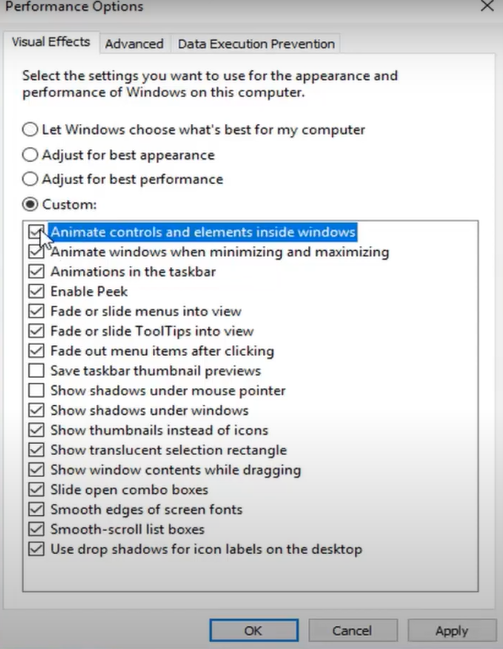
Make sure "Animate controls and elements within Windows" is toggled on. You'll find the steps below:
- Press Win + R to open Run.
- In the new window that shows up, type the following: SystemPropertiesAdvanced and press Enter.
Under "Performance", make sure Animate controls and elements inside windows is switched on.

Mac:
Try disabling the "Reduce motion" setting by following the steps in this article.
