Announcements

Help Wizard

Step 1

NEXT STEP

iPhone Lock Screen Widget: Open Spotify Faster

Announcement-96B.png

Spotify

iPhone Lock Screen Widget: Open Spotify Faster

MattSuda

Now you can open Spotify on your iPhone even faster with the new Lock Screen widget!


After you add the new Spotify widget to your Lock Screen, tapping on it will quickly open the Spotify app. So whether you're busy on the go, in the car, or at home, the Spotify app is now always just one tap away.


Availability: The new iPhone Lock Screen widget is available to all users. To add the Spotify Lock Screen widget to your iPhone Lock Screen you will need to have iOS 16 or later. If you're not seeing the option to add the Spotify widget to your Lock Screen, make sure to update Spotify to the latest version in the App Store.
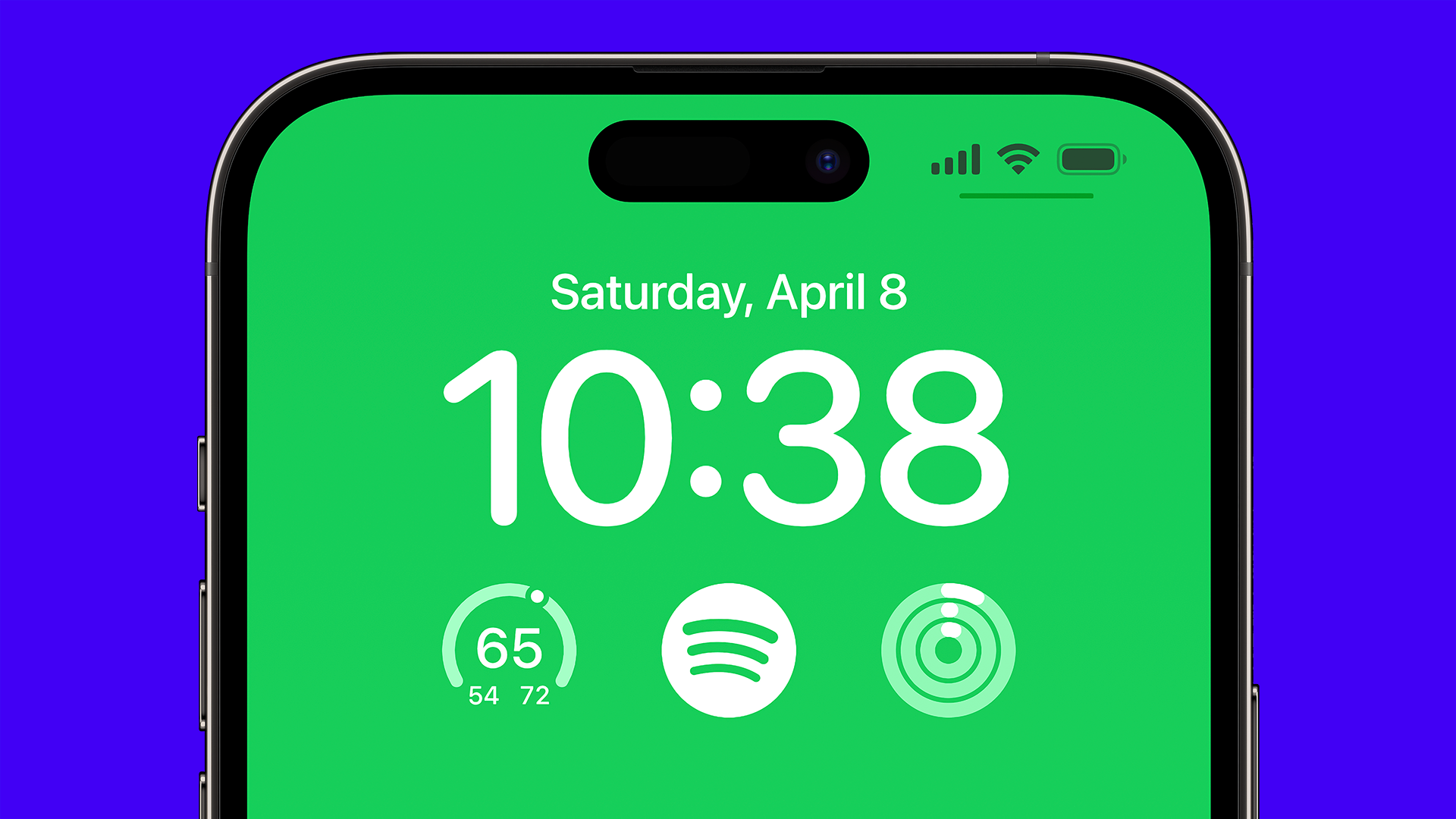
 

Spotify Lock Screen widget for iPhone


How to add the Spotify widget to your iPhone Lock Screen:


Note: You will need to have iOS 16 or later. If you're not seeing the option to add the Spotify widget to your Lock Screen, make sure to update Spotify to the latest version in the App Store.


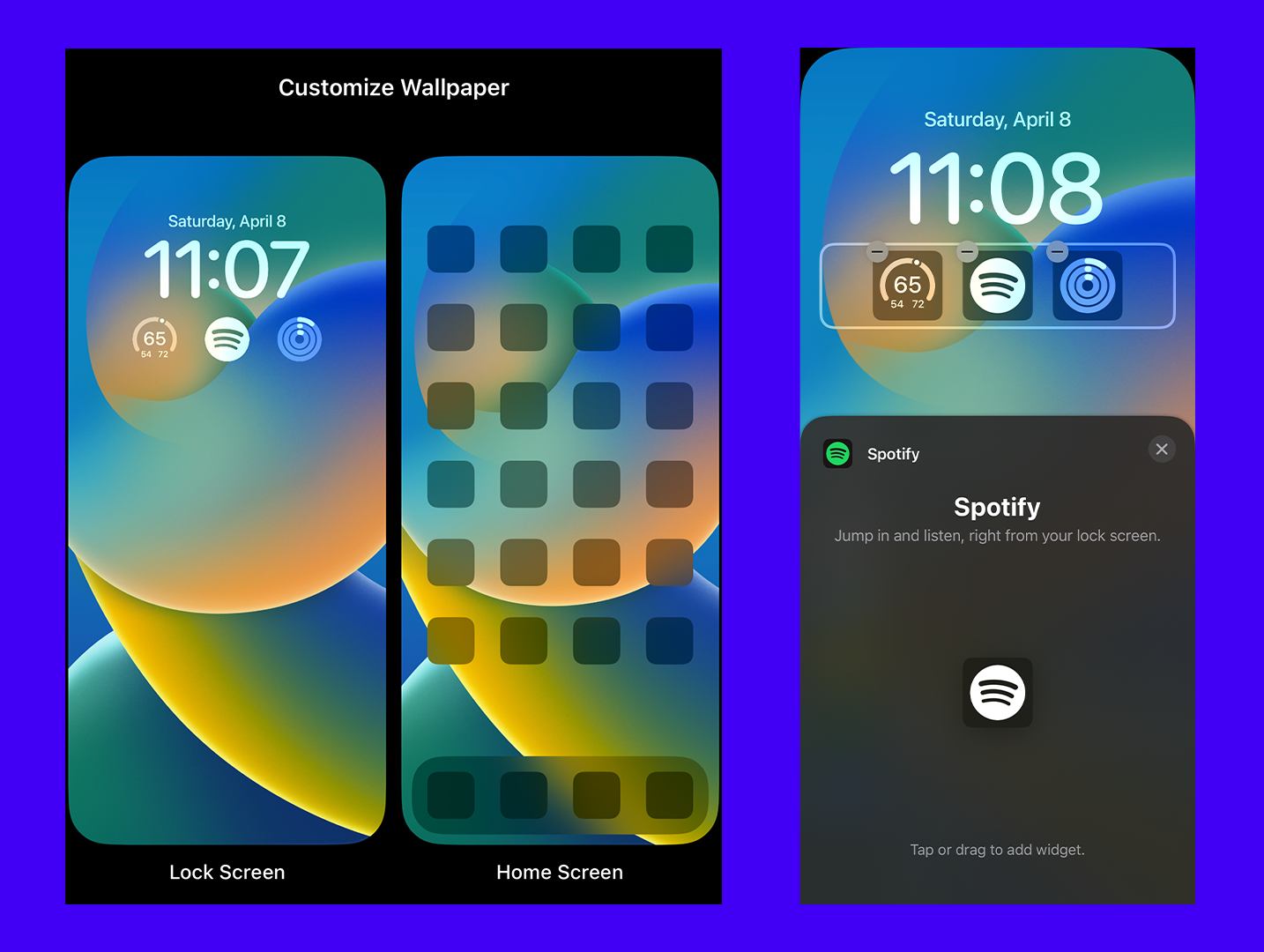
  1. Turn your iPhone screen on and make sure you have unlocked it with Face ID or a passcode first. When you see your Lock Screen, touch and hold your finger on the screen until the Customize button appears, then tap the Customize button.
  2. Tap and select Lock Screen.
  3. Tap Add Widgets (if you've already added widgets, tap on the box area underneath the time).
  4. Scroll through the list and tap on Spotify or drag it to add it to the Lock Screen.
  5. When you're finished, tap on the (X) Close button at the top right of the list, then tap Done in the top right corner of the screen.
  6. Tap on your finished Lock Screen to exit.
  7. Now, jam out and dance! You've now finished adding the Spotify widget to your Lock Screen. Now you can tap on the Spotify widget to quickly open up the Spotify app from your Lock Screen.

If your iPhone is already unlocked and on the Home Screen, you can also go to the Settings app and then tap on Wallpaper. From there you can edit your Lock Screen and add the Spotify widget.


More info on how to create your own customized iPhone Lock Screen can be found here and more info on how to add widgets to your iPhone Lock Screen or Home Screen can be found here


What the process looks like:


Lock Screen Widget Directions Overview


Tips:


● When music is playing in the Spotify app, you can also quickly get back into the Spotify app by tapping on the song and artist title area in the middle of the player at the bottom of the Lock Screen.
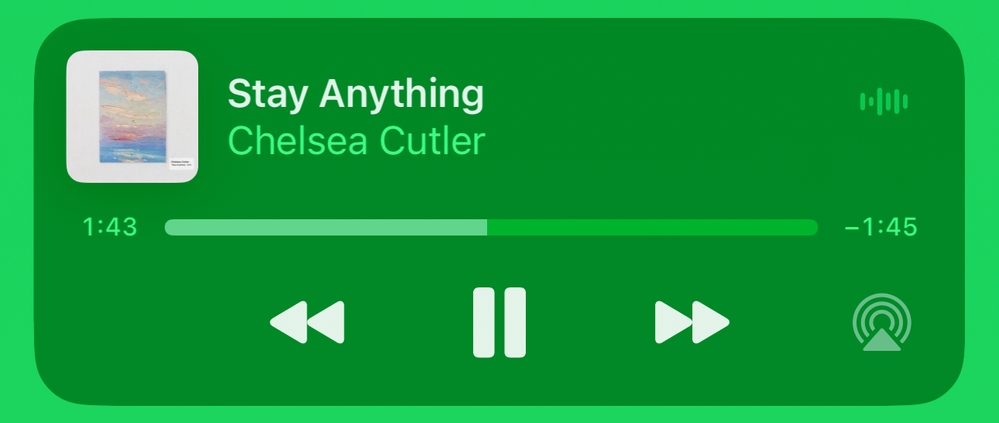
 

Lock Screen Player.png


Spotify also offers a widget for your iOS Home Screen. There are 2 different sizes for the Recently Played widget. The larger widget displays up to five covers of what you most recently played: artists, playlists, albums, or podcasts. The smaller widget displays the cover of what you've most recently played. You can tap on the covers to dive straight back into your content.
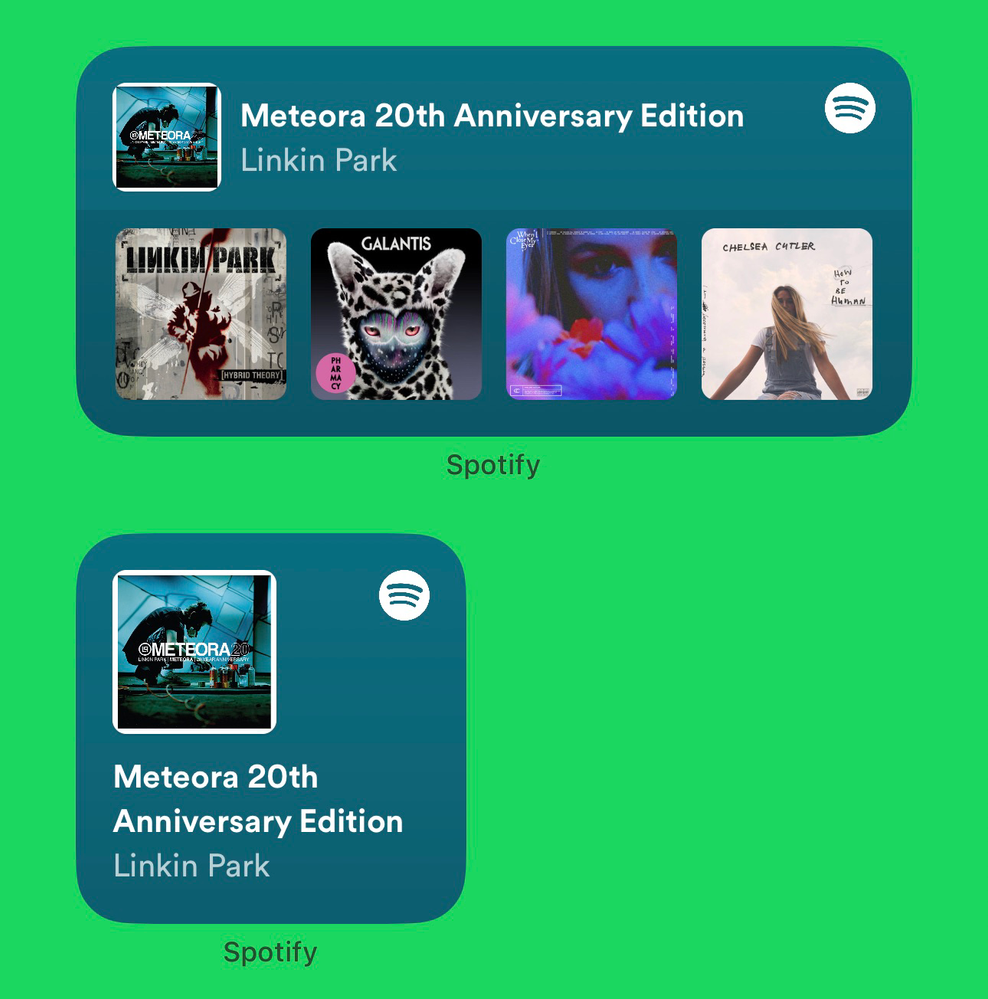

 

Home Screen WIdgets.png

10 Comments
MattSuda

Hey folks,


If you're not seeing the option to add the Spotify widget to your Lock Screen, make sure to update Spotify to the latest version in the App Store.


After reading your comments online, I've seen that some users are having trouble installing the Spotify Lock Screen widget. They have the latest version of Spotify installed which is 8.8.26 and iOS 16 or later installed, but they still don't see Spotify as an option to choose in the list when they go to add a Lock Screen widget.


Please try restarting your iPhone to see if that helps.


If you've already tried restarting your iPhone, please try adding the widget again later.


From my past experience when adding widgets to my Lock Screen, it can sometimes take a restart for it to then show up in the list after the app has been updated with Lock Screen widget support. Even after a restart, it can take a while for it to show as an option in the list.


Please let us know if you're still having trouble seeing Spotify in the list of Lock Screen widgets to add after waiting some time.

MattSuda

Hey folks,


I'm back again with more helpful info.


If you've noticed that the Spotify widget is all of a sudden missing from your iPhone Lock Screen after the Spotify app has updated, I wanted to let you know that this can sometimes happen to Lock Screen widgets temporarily after an app update.


How to get the Spotify widget to show up again on your Lock Screen if it's missing after an app update:


1. Open the Spotify app like you normally would by tapping on the app icon from your Home Screen.


2. After opening the app, the Spotify widget should show up on your Lock Screen again.

EthanS1

Amazing, it's in my Lockscreen! 

ralfy

I like the Lock Screen Widget. No need to scroll up to unlock & then select the App 👍🏼

Sobuj

1688097935021.jpg

MattSuda

UPDATE:


With the release of iPadOS 17, you can now add the Spotify widget to your iPad's Lock Screen to open Spotify faster

MattSuda

UPDATE:


With the release of the iPhone 15 Pro, you can customize the new Action Button using Shortcuts to open Spotify even faster.


More info on how to customize your Action Button on the iPhone 15 Pro can be found on the Apple support site here:


Customize the Action button on iPhone 15 Pro and iPhone 15 Pro Max

mfseoservices

🚗 Spotify Widget Troubleshooting: Hey there! It seems some Spotify users are experiencing issues with the Lock Screen widget. If you’re not seeing the option to add it, here are a few steps to try:

  1. Update Spotify: Make sure you’re running the latest version of Spotify from the App Store.

  2. Restart Your iPhone: Sometimes a good ol’ restart does wonders. Give it a shot and see if Spotify appears in the widget list afterward.

  3. Patience Is Key: Adding widgets can be a bit finicky. Even after an update, it might take a little time for Spotify to show up as an option.

Remember, music is all about timing—sometimes widgets are too! 😉🎵

And speaking of timing and elegance, if you’re ever on Fisher Island and need a luxurious ride, consider Car Service in Delray. They’ll whisk you away in style! 🌴🎩🎶

Feel free to reach out if you need more troubleshooting tips or have any other requests! 😊🔍

Jordancosme84

On iPhone the widget updated and instead of opening the app when I press it, it starts playing a random song. Even if I have a song already playing it will change my song and even the playlist it is playing from. I wish it would just continue to open the app

AlexMedinsh

Why was the original widget removed in favour of the new which doesn't open the app? Why can't they coexist? This is the only use for a lock screen widget - to open the app quickly.