Announcements

Help Wizard

Step 1

NEXT STEP

FAQs / App Help

Find answers and troubleshoot issues related to Spotify's application features. Get answers to common questions about using the app across devices and customize your listening experience.

This is part of a series of articles outlining some common playback-related error messages that you may occasionally encounter and how to troubleshoot them properly. Depending on the exact error message you get, different troubleshooting steps may be involved, so be sure to select the relevant article from the list below and give all steps a try.


  1. Desktop: "Spotify can't play this right now. If you have the file on your computer you can import it."

  2. Web Player: Playback fails and is quickly skipping through songs

  3. ► Song/episode greyed out. "This content is not available."


not available.jpg


You may encounter the "This content is not available" error when attempting to play content that is greyed out and:

  • is currently unavailable on the platform in your region due to licensing issues
  • is marked as 'Explicit' and playback of explicit content has been disabled on your account.
  • is hidden in the current playlist/album
  • is by an artist whom you've blocked
  • is a local file that's no longer physically stored on the device

Below are some possible solutions which may help fix this, check them out:


1. Check if the app is allowed to play explicit content


Yordan_0-1761650718474.png


Such content is marked with EXPLICIT or E tags on individual releases. If the song/episode you're trying to play is marked as 'explicit', you can allow playback by heading following the steps in this article.


⚠️ Note: For Family plans, the plan manager can allow or block anything with an explicit tag for other members of the plan from their Family page, so refer to them if you're unable to enable playback of explicit content on your own.


2. Specific song not playing


Yordan_1-1761655982399.png


It's possible that you've accidentally hidden the song in that playlist/album. You can undo this by pressing the (-) button on the right, from the three dots menu > 'Show in this album' or via the Undo button (Desktop only).


Yordan_2-1761656283685.png


💡Tip: If unhiding doesn't work, try again with another device - if you normally use Spotify on your phone, try unhiding the song from the desktop app and vice versa.


⚠️ Note: The Hide song feature is not available on the Web Player at the moment, so you'll need to use the app instead.


3. Specific artist won't play


You might have restricted the playback for that particular artist. While active, you might also see some albums showing the error message "The tracks from this release are not available." on the mobile app. You can lift the restriction from the three dots menu on their artist page > 'Allow this artist to play' or via the Undo button on desktop shown when attempting to play a track from a blocked artist.


Yordan_0-1761657183782.png


Yordan_1-1761657339144.png


4. Unavailable local files


In order for the files to be playable across your mobile and desktop devices, the same files have to be physically stored both on your phone and PC, so you may need to manually upload them to the other device, if you haven't already.


For an in-depth guide on how to properly set up local files on your device check out the articles below:

⚠️ Note: it used to be possible to sync local files across devices on the same network by downloading the playlist directly. This is now a legacy feature which may no longer work as intended, so it's highly recommended you use one of the methods mentioned in the articles above to ensure proper functionality.


💡Tip: If a local file is playable when accessed from the specialized 'Local files' playlist in Your Library, but is greyed out in one of your personal playlists, it worth removing it from the personal playlist and adding it again from the specialized 'Local files' one to force a resync.


Screenshot_20251120-164657881 (1).jpg


5. Test on another device/account


If a song doesn't play on your phone, it's worth checking if everything works well on another device. Feel free to reach out to a friend or a family member who uses Spotify and have them check if they can play the content on their end.


If they can't either (or they can, but they're located in another country), it's possible that the content is currently unavailable in your region. As much as we'd love to have all the music in the world on Spotify, the content may vary over time and between countries. This depends on permissions from rights holders.


💡 Tip: You can use this third-party website made with our developer tools to check where in the world a specific album is currently available.


In the meantime, you can import local files to your Spotify library.


Didn't help? Search for more answers, return to FAQs, or create a new thread and ask the Community.
This is part of a series of articles outlining some common playback-related error messages that you may occasionally encounter and how to troubleshoot them properly. Depending on the exact error message you get, different troubleshooting steps may be involved, so be sure to select the relevant article from the list below and give all steps a try.


  1. Desktop: "Spotify can't play this right now. If you have the file on your computer you can import it."

  2. ► Web Player: Playback fails and is quickly skipping through songs

  3. Song/episode greyed out. "This content is not available."


Does the Web Player quickly skip through several tracks after a few seconds of streaming (usually around 10) and occasionally display a "Spotify can't play this right now" error? No worries - here are a few methods you can try to remedy this behavior:


1. Update your browser


Untitled.png


Ensure that your browser is running the latest security patches and feature updates. Below are some common browsers & how to install the latest version available, check them out:

⚠️ Note: The browsers above are the ones officially supported by Spotify. If you use another browser, we cannot guarantee optimal performance.


2. Manually update Widevine plugin


Yordan_0-1761660726288.png


Widevine is a digital rights management (DRM) system that protects premium streaming content from piracy. It's highly recommended you manually check if the latest version of the plugin is installed. There's a detailed guide on how to do that here.


3. Clear 'hosts' file


Check if the hosts file contains any entries with Spotify in the address and remove them. You'll find the steps in this article.


4. Check firewall/antivirus software or ad blockers


Aggressive AV or restricted network policies can break DRM or streaming requests. Try disabling them temporarily or test with another network. If you're using any ad-blocker apps or add-ons, we'd recommend adding https://open.spotify.com/ as an exception.


5. Symlinks or moved browser data


If you moved your browser’s cache/profile via symbolic links, check permissions and confirm Widevine is working with the new location.


6. Check your audio output device and sample rate


Make sure Spotify is mapped to a valid audio device in Windows/macOS and that the sample rate isn’t set too high (anywhere between 44.1 and 192 kHz should be okay).


Setting the correct audio output device


Mac users will find a detailed guide on how to do that here. Windows users can follow these steps:


Windows 10 Windows 11
1. Right-click on the "speaker" icon in the system tray and select Open Sound settings. 1. Right-click on the "speaker" icon in the system tray and select Open Volume mixer.
2. Scroll down to "Advanced sound settings" located at the bottom and select App volume and device preferences. 2. Locate Spotify in the list of apps and click on the small arrow on the right to expand the input & output devices.
3. Locate Spotify in the list of apps and change the output device to the correct one. 3. Change the output device to the correct one.


Yordan_0-1761658675978.png


Changing the sample rate


Below are the steps to do this in Windows' settings, but if you're using an external DAC with its own software, you may need to adjust the sample rate from there.


Windows 10 Windows 11
1. Right-click on the "speaker" icon in the system tray and select Open Sound settings. 1. Right-click on the "speaker" icon in the system tray and select Sound settings.
2. Click on Sound Control Panel, located on the right. 2. Scroll down a bit and select More Sound settings.
3. From the new window that pops up, right-click on your playback device and select Properties. 3. From the new window that pops up, right-click on your playback device and select Properties.
4. Switch to the Advanced tab and under "Default Format", select a sample rate between 44.1 kHz and 192 kHz. 4. Switch to the Advanced tab and under "Default Format", select a sample rate between 44.1 kHz and 192 kHz.


Yordan_0-1761658323428.png Yordan_1-1761658444003.png


7. Update sound drivers for external USB DACs and audio interfaces


Driver conflicts or odd configuration in advanced setups (e.g., gaming headsets, external DACs) can occasionally trigger errors. Disabling/re-enabling the device driver or trying a different USB port often helps.


8. In case you're using any DJ apps/software for mixing or creating tunes


If you have any DJ apps/software for mixing or creating tunes, try disabling the option to exclusively use a specific sound card. You can try using a different device to verify if the issue is limited to your setup and/ or network.


Didn't help? Search for more answers, return to FAQs, or create a new thread and ask the Community.
 

Here’s what’s changed, and where you can find the latest episodes from your favorite podcasts.


Where can I find new podcast episodes from shows I follow?
New Episodes is evolving into the Following feed within the Podcasts feed on Home.

  • Open the Podcasts feed at the top of Home
  • Tap “Following” 

You can also find new episodes from the podcast show page, and saved and downloaded episodes are found in Your Episodes, available in Your Library.

Make sure to follow your favorite shows and tap the bell icon to get notified when new episodes are released. 


Where can I resume episodes that I’ve already started?

We’ve made it easier to jump back into episodes that you’ve already started by putting them on the Home feed, making it possible to resume an episode with just a tap.


Why was this changed?

We’ve heard from our users that keeping up with the latest episodes of their favorite podcasts can be challenging. This change was made to make it easier to find the latest episodes from the shows you follow.  Resuming an episode that you have already started is now just one tap away, in the top section of Home, so you can jump back in and resume with just one tap.


Your Library remains the best place to find anything you've saved or liked, including music, podcast episodes, and audiobooks.


We’ll continue to explore new ways to make this space even better. So whether you’re tuning in for entertainment, inspiration, or discovery, there’s always something fresh and relevant waiting for you.


How are episodes sorted in the Following feed?

Episodes in the Following feed are sorted in reverse chronological order. The newest episodes from your followed shows appear first. There is no ranking or filtering beyond the release date. 


How can users remove finished episodes from their feed?

Episodes in the Following feed are sorted in reverse chronological order. When an episode is finished, users will see a green check mark show up next to the episode. We’ll continue to explore new ways to make this space even better based on user feedback. 


What happens to New Episodes in Car, on Desktop or TV?

This change only affects Spotify on iOS and Android phones. CarPlay and Android auto will remain unchanged. 


Labels:

Most Recommended Fix:


Uninstalling and reinstalling the application generally fixes most issues with skipping, followed by turning your device off and on. 


Here are some of the fixes you can try on different devices based on solutions verified by other Spotify Community users and moderators:


iOS

Spoiler
@Loxer recommended these steps for an iPhone user: 


  1. Uninstall and reinstall the most current version of Spotify
  2. Sign Out Everywhere and Remove Offline devices from your Spotify account page 

View original thread


Apple Watch

Spoiler

@OscarDC recommended clearing the cache and reinstalling the app on both the Apple Watch and iPhone which solved an issue for playlists that were skipping during playback from Apple Watch


Follow steps from this support article for reinstalling on your iPhone. 


View original thread


Desktop Windows

Spoiler

Solution 1: Test Other Playback Devices

@Rorey suggests to change the playback devices:

Check if there are other devices available to test other playback device options.

1. Open CMD and execute the following command: 

control mmsys.cpl sounds

2. Set one of the devices as default (or change the current one), then restart Spotify and see if it works.

Solution 2: Refresh the Desktop App Installation

@Sebasty suggests the following steps for refreshing the desktop app:

Try this:

  1. Close Spotify and uninstall it.
  2. Go to %AppData% in the file explorer, and delete any Spotify folders you find in Local and Roaming.
  3. Restart your computer.
  4. Reinstall Spotify.


View original thread 


Solution 3: Reinstall Your Audio Desktop Driver


@KTofKashyyyk reinstalled their audio desktop driver to solve the playback issue. Find your computer software instructions for reinstalling your audio driver. 


View original thread


Windows 10:


Solution 1: Reset Your Playback Devices


@Ox1 suggests changing your default playback device to your computer's speakers:


Please try changing your default playback device to your computer's speakers (http://www.7tutorials.com/how-change-default-playback-recording-audio-device) restart Spotify and try it again.


View original thread


Solution 2: Update Software


@HHaken updated their PC, Java, Flash, and Windows software which solved the issue.


View original thread


Solution 3: Driver Not Properly Installed


@neekom  determined their driver was not properly installed and solved the issue with a suggestion provided by another user (1) @iknowmystuff in this thread.


View original thread


Solution 4: Sleep Mode Disrupting Playback

If your computer went on sleep mode@polvda suggests restarting the computer:

“On my computer Spotify skips all songs in a playlist when the computer has waken from sleep mode.

Restarting the computer fixes it till after the next sleep mode.”


View original thread


Solution 5: Playback Skipping with Audio Jack or Default Speakers

@Drfail21  had this suggestion for users who want to play music through the audio jack or default speakers and are experiencing track skipping in this thread.

View original thread


Bluetooth & Car Audio

Spoiler

@Clutchgear found that Bluetooth (on Android) was overwhelmed with running applications that was causing Spotify to skip. 


  1. Unpair the phone and radio
  2. Re-pair your Bluetooth to your car 
  3. Deny sharing contacts, messages, and turning off hands free calling


View original thread


An Album or Specific Content is Skipping 

Spoiler

@CarlosE  recommends reporting the content by following the steps from this support article.


View original thread


 Didn't help? Search for more Spotify Answers, return to FAQs, or create a new thread and ask the Community. Click the Tags to see related FAQ content.

Labels:


Music is better when you're enjoying it together! Find tunes you and a friend both dig with Blend. Blend is a shared playlist where you can see how your taste matches up with the taste of a friend 👯‍


Q: How can I invite someone to a Blend?

A: Premium and free users. Just open up the Spotify app on your mobile device, head to Search select the Made for You hub and follow these simple steps: 

  1. To create the shared experience, tap 'Create a Blend'
  2. Tap 'Invite' and choose a way to share the invitation with a friend
      
    image.jpeg
  3. The recipient will then receive a message with the invite
  4. Tap 'Spotify' from the sent invite
  5. Click 'Join' to create the Blend

Q: Where can I find all my Blend playlists?

A: You should see the 10 most recently created Blends on the Made For Two shelf within your Made For You hub. Blends are auto-added to the other persons’ libraries as well.


Q: Can I leave a Blend?

A: You can leave a Blend at anytime by opening the Blend playlist you'd like to leave, tapping the three dots (...) and then choose 'Leave Blend'. You and the other person won't be able to see the Blend anymore. 


Q: I’m not seeing this when I open on desktop?
A: The option to create a Blend is only available on mobile devices. 


Q: How can I rename a Blend?

A: At the moment, it's only possible to rename a Blend on a mobile device, just click on the three dots within the playlist > Edit name. 


Q: When I click on a Blend invitation link, Spotify opens up but then nothing happens?
A: Make sure that your browser app and Spotify app is up to date and then try again.


If you want to read more about this new feature, you can check out this Newsroom article or visit our support site


Didn't help? Search for more FAQs, or create a new thread and ask the Community.

Labels:

Answer:


There's a few different reasons why you could be seeing this happening in your Spotify account. We've explained them below, along with some troubleshooting steps that you can try.


If you notice songs unexpectedly added in your Liked Songs:

It's possible that you've linked your Spotify account to a third-party app that could be adding new songs from your favorite artists when they become available. In this case, it would be a good idea to make sure to revoke access to any third-party apps that you don't recognize or no longer need with the steps mentioned here


Tip: when integrating Spotify with a third-party app, always double-check the permissions it allows before linking.


If you're on free and notice songs added to playlists that you've created:

Spotify free can help you find new music we think you'll love. That means we’ll continue to suggest tracks and artists for your playlists as you create and edit them. The more you listen, the better the suggestions will become.


Further, if you have less than 15 songs in your Liked Songs, we'll add more. You will see a message telling you that the extra songs were added by us, but they can be replaced by adding more songs. 


If you're on Premium:

And you've enabled the Smart Shuffle function, it would recommend and add songs to your playlists (including Liked Songs) that match the vibe and keep your listening sessions fresh. These tracks have the Smart Shuffle symbol next to the artist name. Check out this help article for more details about Smart Shuffle and how to enable/disable it.


Lastly, if you're still having troubles, we'd recommend making sure to follow the steps provided in this support site article, including reaching out to our support teams so that they can look into this for you.


Didn't help? Search for more Spotify Answers, or create a new thread and ask the Community.

Labels:

Most common issues can be fixed with a quick reinstall of the app. In some situations however, a clean (more thorough) reinstall of the app might be needed. This way, you can start afresh with Spotify on your device. 


Heads upYou'll need to re-download any downloaded music and podcasts after reinstalling the app. Your settings will also be reset to the defaults, so it's a good idea to make screenshots of them so you can quickly set them up the way you like them again.


Below you can find all the steps for a clean install of Spotify on your device - just scroll down until you see your device/OS:


Android


  1. Go to your phone’s Settings.
  2. Select Apps.
  3. Select Spotify from the list of apps.
  4. Tap Storage / Storage & cache memory.
  5. Find and tap Clear storage / Clear data and Clear cache.
  6. Return to the previous screen and tap Uninstall.
  7. In the phone's Files (or File Manager, My Files, etc.) app, Go to Internal Storage > Android > data. If you see a com.spotify.music folder, delete it.

    If you’re using an SD card, go to SD Card > Android > data. If you see a com.spotify.music folder, delete it.

  8. Restart your device.
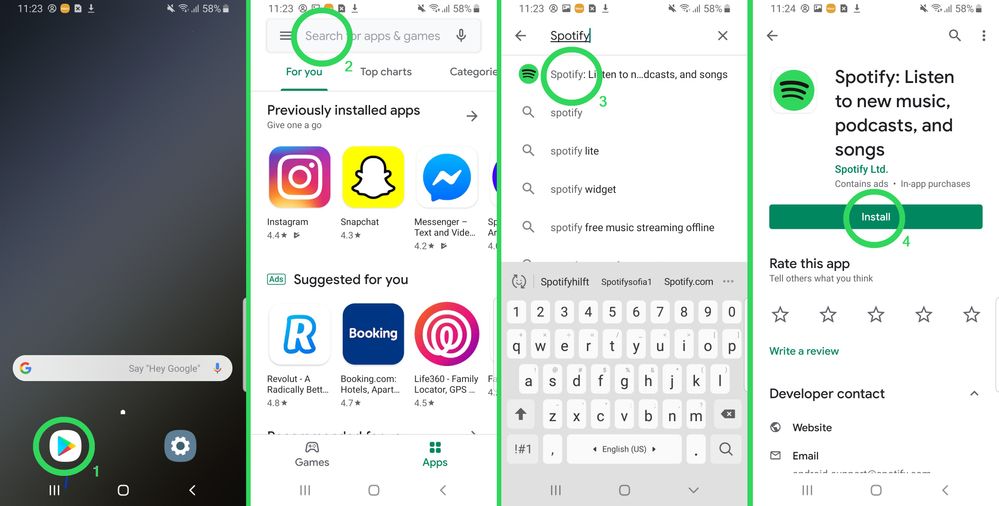
  9. Go to Google Play and install the Spotify app.

iPhone


  1. Open Spotify. In the app's settings (you can access them by going to your profile picture in the top left corner and then tapping Settings and privacy gear icon), select Data-saving and offline, then Storage and click on Clear cache.
  2. Head to your device's Settings, then tap General.
  3. Tap iPhone Storage.
  4. Select Spotify from the list of apps.
  5. Tap Offload the app and confirm. This will delete the app but its documents data will be kept.
  6. Then tap Delete App and confirm. This action should delete any leftover documents and data.
  7. Once the app is deleted, press and hold the Side/Top button and either volume button until the power off slider appears.
  8. Drag the slider to turn your device completely off.
  9. After your device turns off, wait a couple of minutes.
  10. Press and hold the Top (or Side) button again until the display turns on.
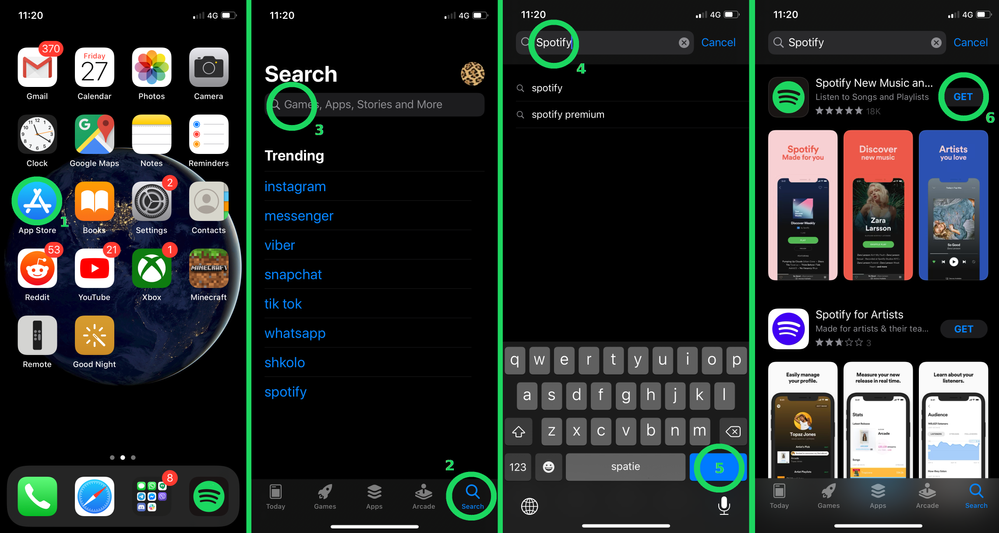
  11. Switch your device back on and install Spotify from the App Store.

iPad

The steps for a clean reinstall in an iPad device are similar to those of iPhone devices above.  Keep in mind that in step 4 you'll need to look instead for iPad Storage.


MAC


  1. Quit Spotify.
  2. Open Finder then click Go (on the menu bar on the top of the screen). 
  3. Select Library from the drop-down menu that appears (you may need to hold the Option (Alt) key if Library isn’t visible).
  4. Open Caches and delete the com.spotify.Client and com.spotify.client.helper folders.
  5. Click the back arrow. 
  6. Open Application Support and delete the Spotify folder.
  7. Hit Command+Shift+G from your OS X desktop to bring out the Go to Folder window.
  8. Enter /Library/ to open Library folder.
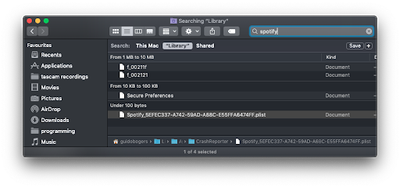
  9. Enter “Spotify” in the search field, hit “Search: Library” and delete all files that appear:IsleyP_0-1668117078036.png
  10. Shut down your computer.
  11. Wait a couple minutes and then hit the Power button again to boot your device.
  12. Download and install Spotify.

Windows


  1. Open Spotify and click File in the menu bar. Select Exit.
  2. Click the Start button.
  3. Select Settings.
  4. Open System.
  5. Click Apps & features, then select Spotify.
  6. Click Uninstall. Click Uninstall again in the pop-up to confirm.
  7. On the Start search bar, type %AppData% and hit enter. This should open up AppData\Roaming.
  8. In the new window that opens up make sure there's no Spotify folder showing up. If there is, you can delete it.
  9. Make sure that there is no Spotify folder left in AppData\Local  (or C:\Users\*USERNAME*\AppData\Local\Spotify\Storage) as well.
  10. In addition, you can run a search on your device to look for any leftover Spotify folders left. If you find any, make sure to delete them.
  11. Shut down your device, wait a couple of minutes and switch it on again.
  12. Download and install Spotify (try different download sources, if the issue doesn't get resolved after the first try):


Tip: If you'd like to be more thorough, you can also use in addition a trusted third-party device cleaner app to make sure you've removed any leftover files before installing the app again.


Didn't help? Search for more FAQs, or create a new thread and ask the Community.

Labels:

Want to know what you've recently listened to on Spotify?


Here's how you can access your listening history:


Desktop:


  1. On the bottom right, click on the Queue icon:

    d1.png

  2. Select Recently played at the top of the right panel:

    MihailY_0-1674910015069.png

  3. You'll get a list of the last 50 tracks you've listened to on this device.
    Note: This is not available on the Web player.

Another way of seeing your recently played albums and playlists is via the Home page. In this section you'll find playlists, albums and artists you've been listening to recently.


MihailY_1-1674910069595.png


Mobile:

  1. On your mobile app's Home page, tap your profile picture at upper left corner of the screen and select the Listening history icon:

    1717795595681.jpg

  2. You'll see a list with the albums, playlists and tracks you've played recently.


For more in-depth listening history, it's worth learning about how to scrobble with Last.fm.


Note that you can also download a copy of your personal data, which features your streaming history for the last year or for the lifetime of the account, including track information, and when and how you streamed content.


Didn't help? Search for more FAQs, or create a new thread and ask the Community.

Labels: